
 👀 Choose SSD-powered VPS servers for increased speed, power, and security! Now 50% off- starting from only $3.19/mo.
Two-Factor Authentication is really useful for securing your account from unauthorized access. If 2-Factor Authentication is enabled on your client area and someone attempts to login, they will not be able to do so without the 2-Step Code.
Further reading:
For security, we recommended you to enable it.
Getting Started With 2-FA Integration
- Login to your Hosting Dashboard using your login credentials.
- Under "Hello username", after clicking on it, you will see the "Two-Factor Authentication" option. Click on it.
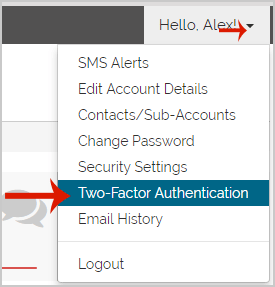
- On the Two-Factor Page, click on "Enable Two-Factor Authentication".
- Scan the QR Code with your Authenticator App or manually enter the code in your mobile device. This will display it on the device. Enter the code in the “Enter your code” field and then click on "Verify Code"
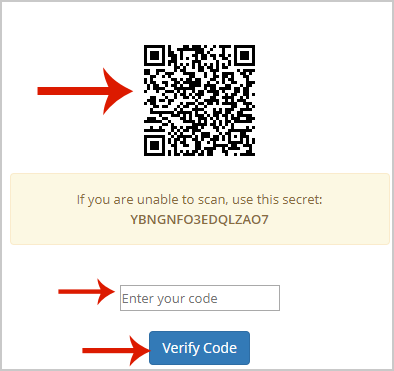
If successfully enabled, you will see the “Emergency code”. Copy it to a safe place because in case you lose your mobile later, you won’t be able to use it to access your account and disable the 2FA.
Conclusion
You now know how to enable two-factor authentication for client area.