
 👀 Choose SSD-powered VPS servers for increased speed, power, and security! Now 50% off- starting from only $3.19/mo.
This article provides a guide for how to reset password for Hosting Dashboard access.
How to Reset Password for Hosting Dashboard
Follow the steps below to reset password for Hosting Dashboard:
- From this page, navigate to the "Account" dropdown menu in the top left area of the screen.
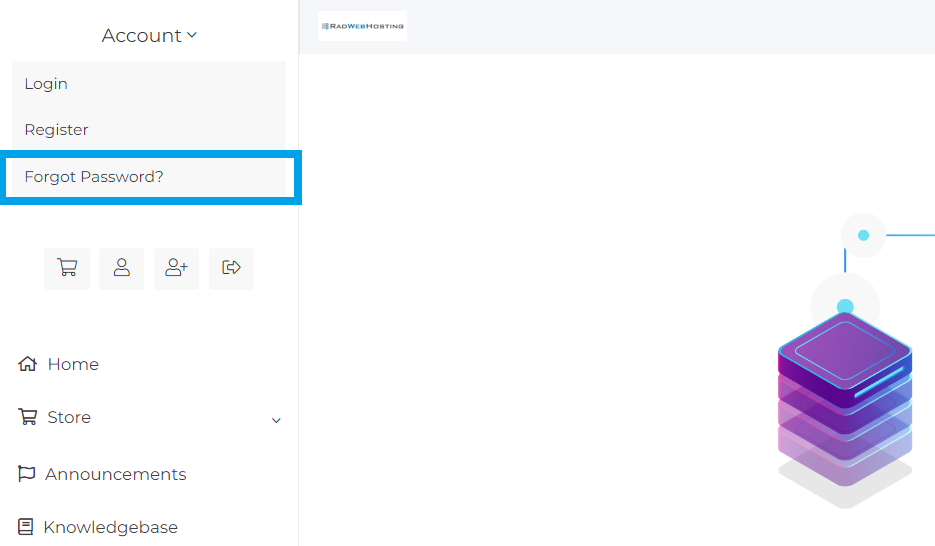
- From the dropdown, select the "Forgot Password?" menu item.
- From the reset password page, fill the email address field and click "Submit".
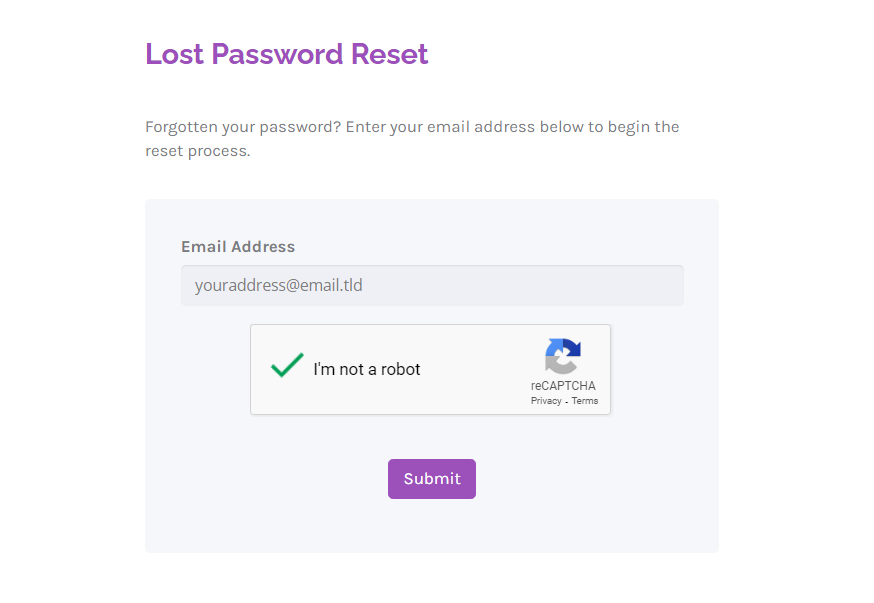
- Next, view check your email for the Password Reset email from Rad Web Hosting and follow the enclosed instructions.
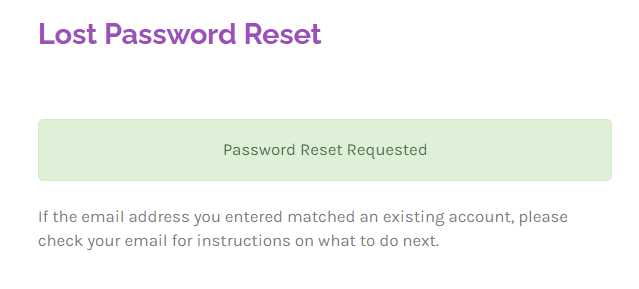
- Upon completion, you will be redirected to the Hosting Dashboard login interface.
Conclusion
You should now be familiar with the process by which to reset password for Hosting Dashboard.
Have questions? Please contact support by opening a support ticket for any issues.
