
 👀 Choose SSD-powered VPS servers for increased speed, power, and security! Now 50% off- starting from only $3.19/mo.
This tutorial will guide you how to install WordPress with just few clicks using Softaculous.
How to Install WordPress Using Softaculous
To install WordPress using Softaculous, follow the steps below:
Now look for Softaculous icon in the control panel as shown in the screenshot below. Click on the Softaculous icon which will take you to the Softaculous enduser panel.
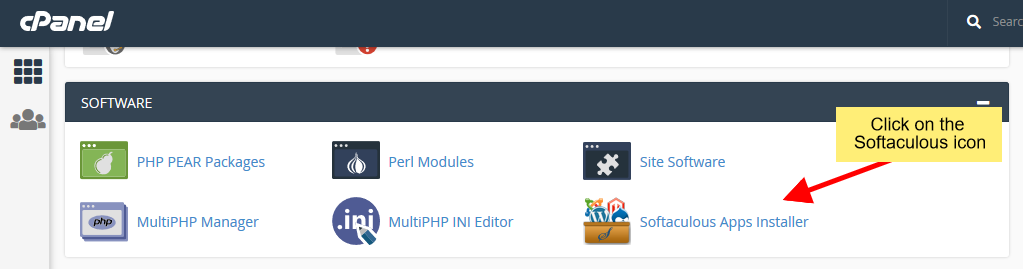 Access Softaculous from your control panel
Select WordPress
Once you are on the Softaculous enduser panel, you will need to search for WordPress as shown in the screenshot below.
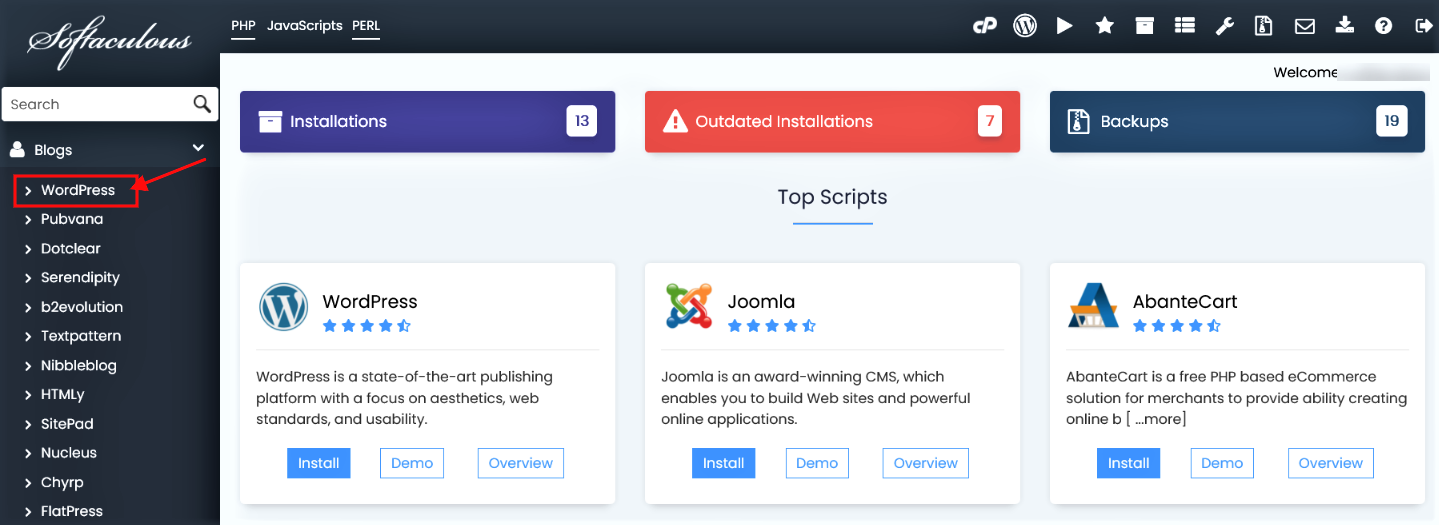 Select WordPress
This will take you to the WordPress page, click on the Install button here which will display the install form.
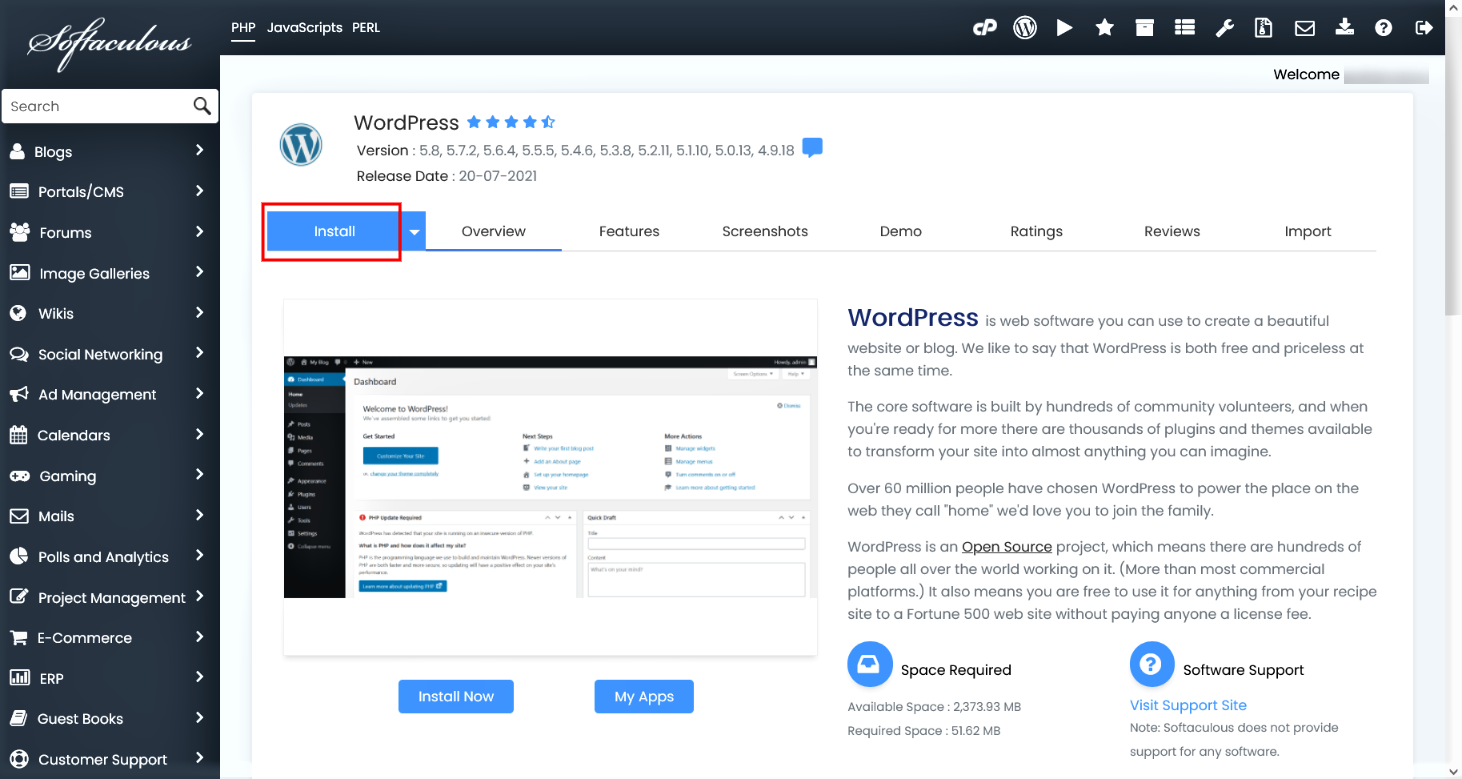 Click on the Install button
Fill the install form
After clicking on the Install button, you need to fill in the form displayed as shown in the screenshot below. The form asks lots of details (which are prefilled by default), you can change it if you need or leave it as it is and proceed with the installation with default values.
Choose Installation URL : Choose the domain and the folder where you want to install WordPress.
Note : If you want to install WordPress in document root i.e. example.com and NOT in a sub directory i.e. example.com/wp then leave the In Directory field as blank.
Admin Username : Choose the username to be used for WordPress admin account
Admin Password : Choose the password to be used for WordPress admin account
Admin Email : Choose the email to be used for WordPress admin account
Select Language : Select the language in which you want to install WordPress
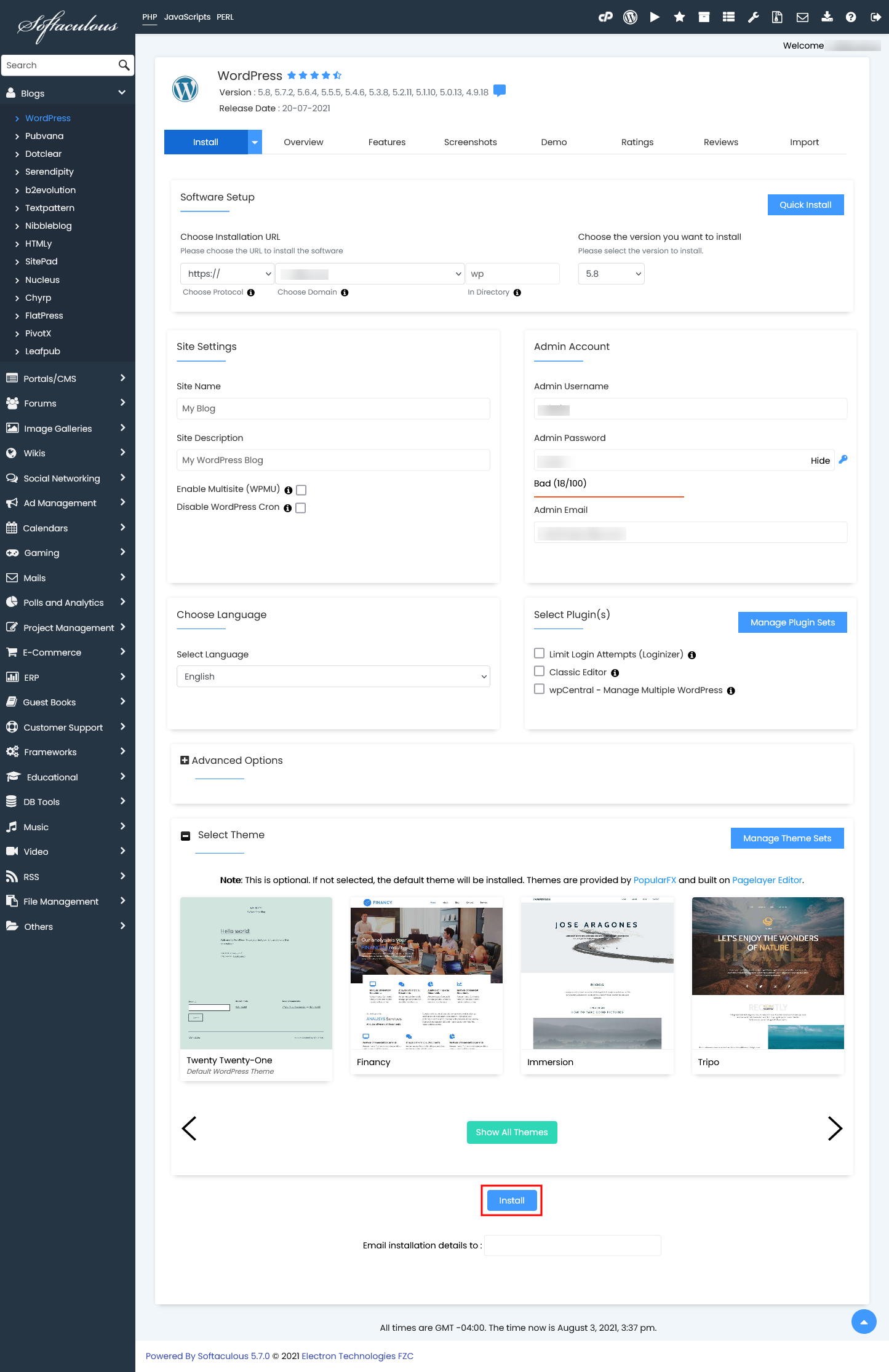 Fill in the install form
After filling the form click on the Install button to start the installation process.
Sit back and relax, let Softaculous handle the installation process for you.
Installation Completed
You will see the success message as shown in the screenshot below when the installation is completed.
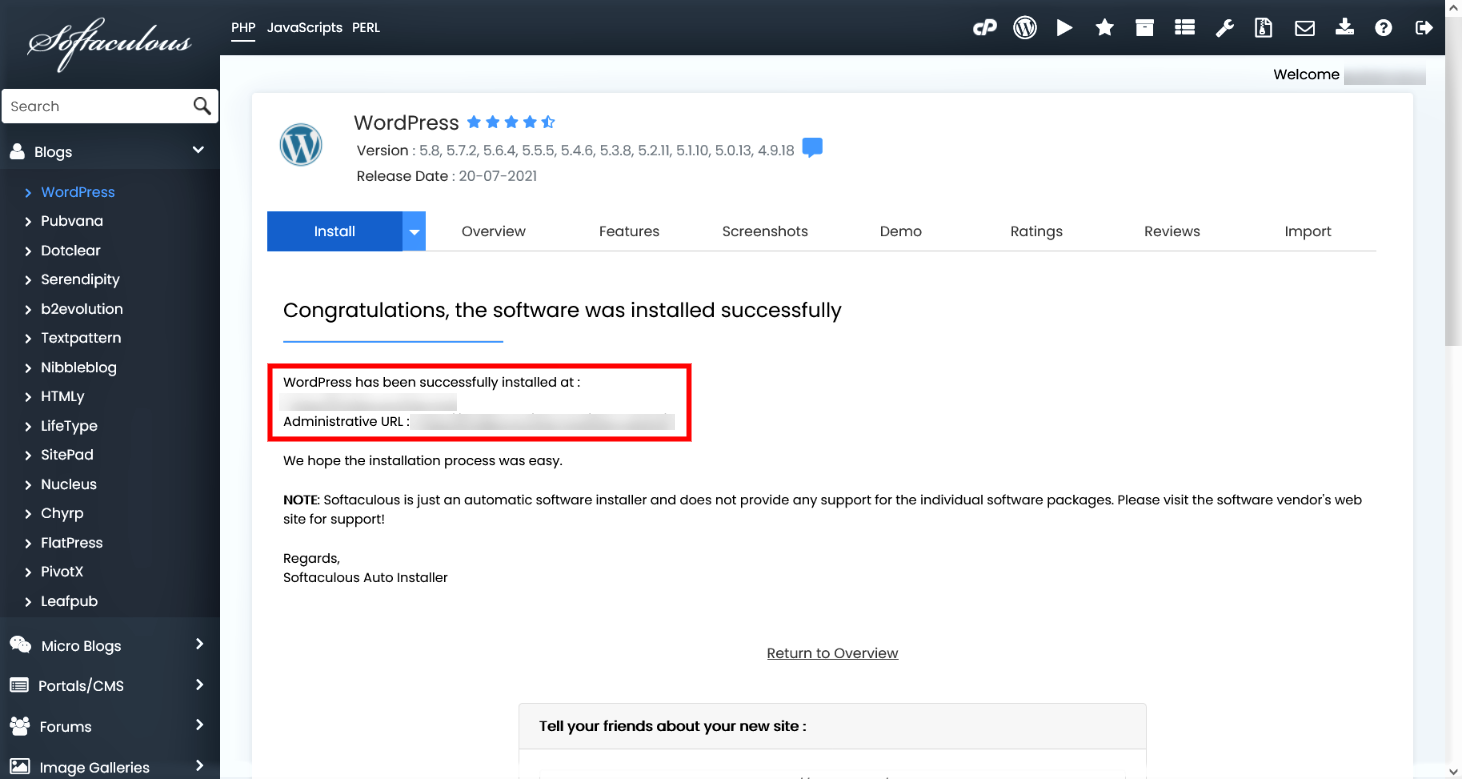 Access WordPress admin panel
You can then access the WordPress admin panel and/or WordPress site.
We hope the installation process was easy.
You can not only install WordPress using Softaculous but you can also manage the complete life cycle of your WordPress installation which includes upgrading, backup, restore, clone, staging and much more with the WordPress Manager.
Conclusion
You now know how to install WordPress using Softaculous installer.
