
 👀 Choose SSD-powered VPS servers for increased speed, power, and security! Now 50% off- starting from only $3.19/mo.
This article provides a guide for server administrators who want to install Webmin on VPS server with VPS Panel.
What is Webmin?
Webmin is a free and open source server control panel software, distributed under the BSD license, with support for web, DNS, database, FTP and email servers. Webmin can also be extended by numerous official and unofficial integrations and modules.
Webmin's reputation for being user-friendly and for frequent updates and patches make it a popular choice for users looking for a free alternative to the premium control panels, which can start at $5/mo and cost as much as $1000/mo depending on brand and usage.
Webmin System Requirements
To install Webmin on a CentOS VPS, the following conditions must be met:
- Designated fully-qualified domain name for the hostname (ex: server.yourdomain.com)
- Hostname must resolve to a public IPv4 or Ipv6 address
- Network Manager must be disabled
- Minimum hardware requirements: 1.1 GHz CPU, 1 GB RAM, 20 GB Disk
- Recommended minimum hardware: 1.1 GHz CPU, 2 GB RAM, 40 GB Disk
How to Install Webmin on VPS Server with VPS Panel
Follow the steps provided to install Webmin on a VPS using VPS panel:
- Login to VPS Panel
- Navigate to "List VPS" (from side menu)
- Select the VPS that Webmin will be installed on
- View VPS information to verify server details
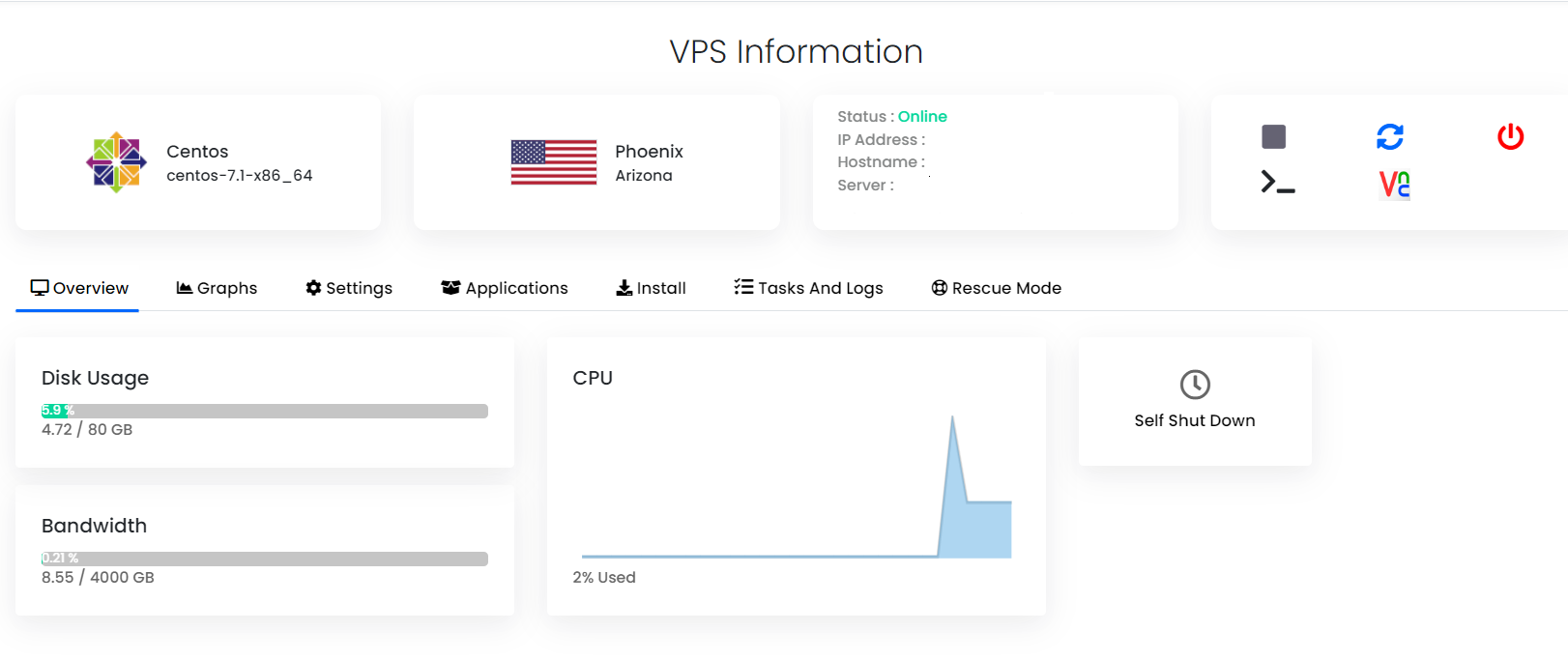
- Navigate to "Install" tab.

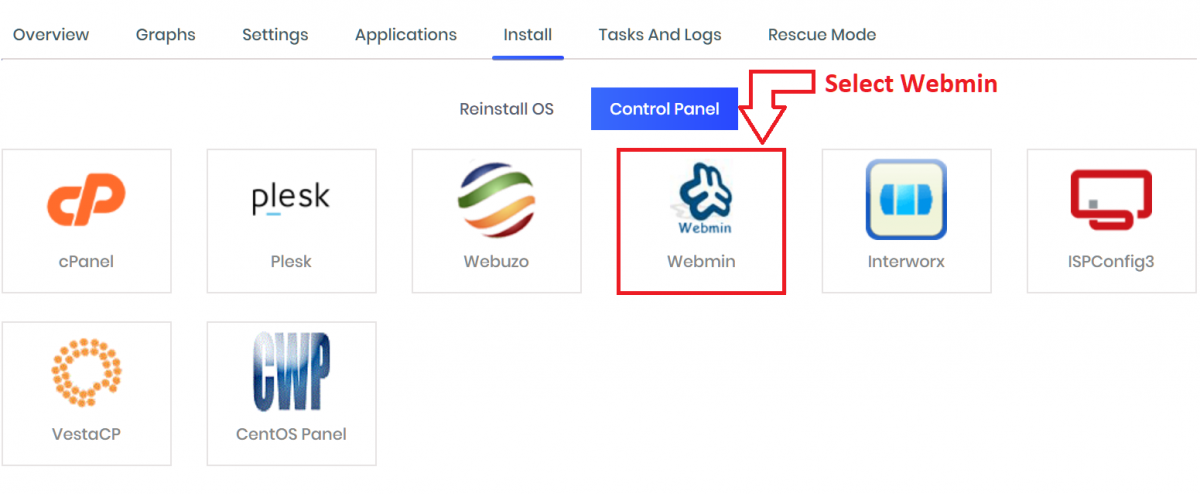
- Select Webmin from the "Control Panels" menu.
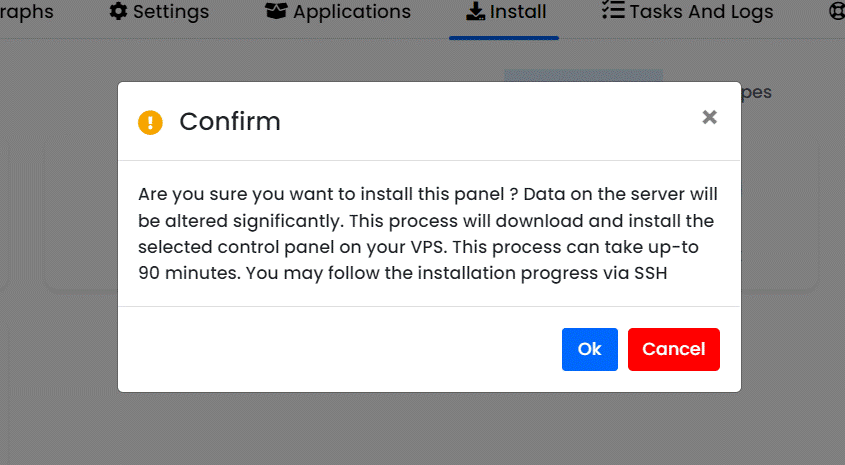
- Click to accept the data loss warning and start the automated Webmin installation.
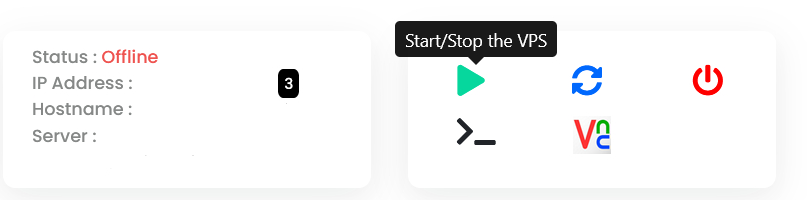
- Before the installation begins, you must shutdown the VPS by clicking the "STOP" icon, as shown in the image below:
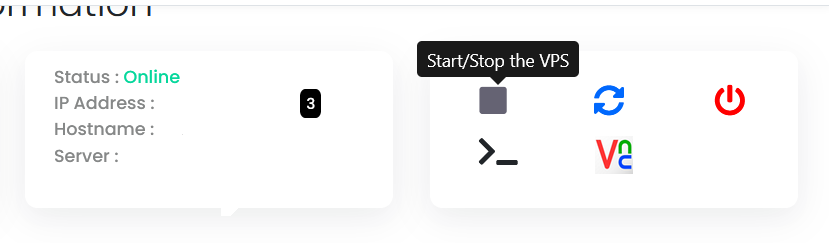
- Once the VPS has shutdown, click the "PLAY" icon to restart it, as shown below:
- When the VPS has booted, your installation will begin.
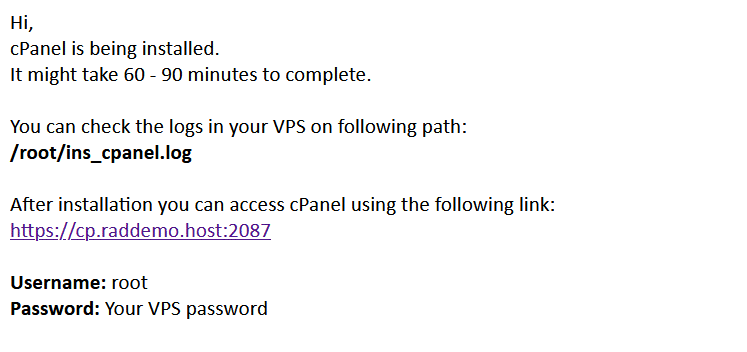
- An email with the control panel installation details will be sent.
- You may now navigate to the Webmin login screen in your browser (
https://<server-IP>:10000) to configure the Webmin settings.
As Webmin is an open source software, no license keys are required to access.
