
 👀 Choose SSD-powered VPS servers for increased speed, power, and security! Now 50% off- starting from only $3.19/mo.
This article provides a guide for setting up WP-CLI as a cPanel user. WP-CLI is enabled for all cPanel users by default with all Shared Hosting, WordPress Hosting, and Reseller Hosting plans.
For cPanel VPS and cPanel Dedicated Servers, please follow this guide to enable WP-CLI on your cPanel server:
Setting Up WP-CLI as a cPanel User
cPanel users without root access can’t move files into a directory in PATH, but they can run it from their home folder or in a WordPress site’s directory.
To run it from your home directory, you can tell WP-CLI which WordPress site to control with the “–path” option. For example:
./wp-cli.phar config list --path=/home/user/public_html/If you move WP-CLI into the WordPress site’s directory, you don’t have to supply a location with “–path,” but you will need to specify the directory that contains the executable, using “./“ for the current directory.
/home/user/public_html/wp-cli.phar config listTo make it easier to use, you can create an alias, a command-line shortcut :
alias wp='~/wp-cli.phar’The shell will replace “wp” with “~/wp-cli.phar”, allowing you to enter “wp” rather than the full path to the executable.
You can make the alias permanent with:
echo "alias wp='~/wp-cli.phar'" >> .bashrcWe’re adding the alias command to your account’s .bashrc configuration file so that it runs whenever you log in.
How WP-CLI Commands Work
WP-CLI commands are composed of a primary command followed by subcommands for controlling particular aspects of a WordPress site.
For example:
wp help Here “help” is a command, which has subcommands such as:
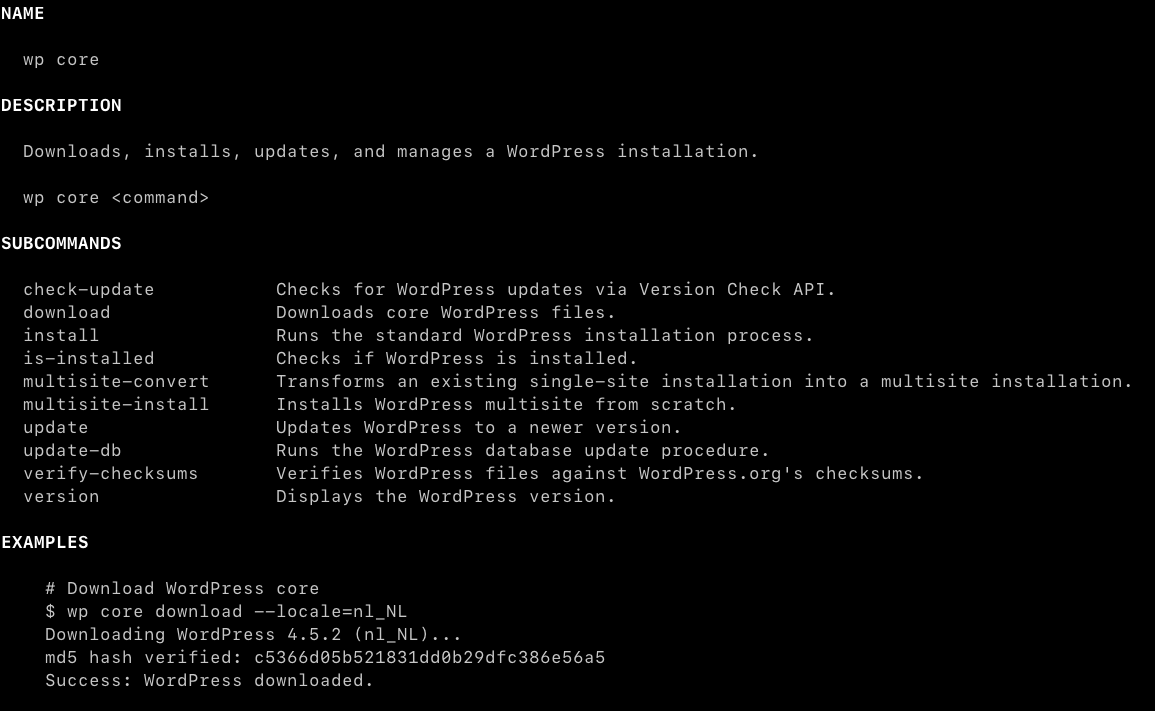
wp help coreThis prints help information for “core” management features. The tool has an excellent built-in help and documentation system. If you’re unsure which commands you can run or what they do, help should be your first recourse.
4 Incredibly Useful WP-CLI Commands
There are over 40 commands and hundreds of subcommands. You can read the full list in the documentation, but we’d like to highlight a few of the most useful.
- Reading and Writing Config Files
- Changing WordPress User Passwords
- Installing WordPress core, themes, and plugins
- Back-up and Optimize the WordPress Database
Reading and Writing WordPress’s Configuration
The config command can read and write WordPress’s configuration, which is stored in the wp-config.php file.
To see the configuration variables in a site’s wp-config.php file:
wp config list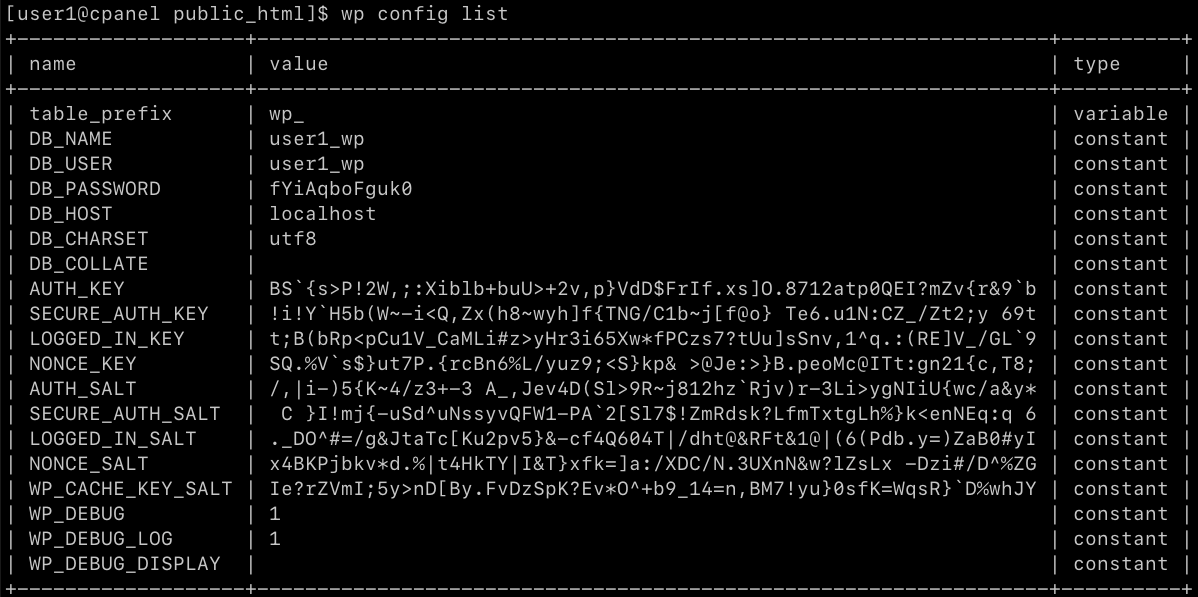
To edit individual configuration variables such as the database name:
wp config set DB_NAME new_nameTo generate a new wp-config.php file with pre-configured values:
wp config create --dbname=user2_wp --dbuser=user2_wp --dbpass=new_passwordChanging WordPress User Passwords
Here’s a fast way to replace lost and forgotten WordPress passwords.
wp user update USERNAME --user_pass="new_password"Although this method is faster, it is not as secure because the user’s plaintext password is stored in your shell history. You can delete the shell history entries by using the up arrow to select the command and pressing Ctrl-U to delete it.
Installing WordPress Core, Themes, and Plugins
One of the most useful aspects of controlling WordPress from the command line is the ability to install everything from a plugin to a full WordPress site.
Let’s start with a plugin:
wp plugin install hello-dolly --activateTo install without activating, omit the “–activate” option. To find the correct name for a plugin, open its page in the WordPress plugin catalog and copy the URL slug. In the example, we used the Hello Dolly plugin and copied the URL slug from its web page: https://wordpress.org/plugins/hello-dolly/.
To install a theme:
wp theme install twentytwenty --activateYou can also “uninstall,” “delete,” and “update” plugins and themes. The update feature is particularly useful on sites with many plugins:
To update all of a site’s plugins at the same time:
wp plugin update --allFinally, to install a new WordPress site in seconds:
wp core install --url=example.com --title="A New Site" --admin_user=frank --admin_password=astrongpassword --admin_email=frank@example.comRunning this on the command line stores the plaintext admin password in the shell history, but you can delete it as described in the previous section.
Back-Up and Optimize The WordPress Database
As we explained in How to Backup MySQL Databases, it’s straightforward to dump your site’s MySQL database in the cPanel interface. However, if you prefer to back up from the terminal, use:
wp db export --add-drop-tableThe “–add-drop-table” option ensures that data is correctly replaced when restoring the backup. Export creates an SQL file with a filename based on the date and database name. To specify a different filename, add it to the end of the command:
wp db export --add-drop-table database-backup.sqlTo restore the database, import the SQL file with:
wp db import database-backup.sqlImporting is a destructive action. It will irretrievably delete any data that was added to the database after the backup was made.
Finally, you can optimize or repair the database. Optimizing reorganizes the way data is stored to speed up reading and writing:
wp db optimize Repair attempts to fix damaged database tables. It is often worth trying when you suspect database corruption or in a White Screen of Death situation where the WordPress interface is not working.
wp db repairConclusion
You now know how to setup WP-CLI as a cPanel user.
