
 👀 Choose SSD-powered VPS servers for increased speed, power, and security! Now 50% off- starting from only $3.19/mo.
This article details how to setup a cPanel email account in Mozilla Thunderbird.
What is Mozilla Thunderbird?
Thunderbird is a friendly email client software for managing your email. You can set up a cPanel email account with Mozilla Thunderbird and receive/send the email.
How to Setup a cPanel Email Account in Mozilla Thunderbird
To setup a cPanel email account in Mozilla Thunderbird, follow the steps below:
- Open Mozilla Thunderbird.

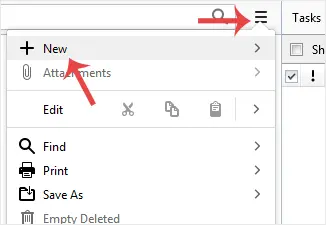
- Click on the menu icon located on the right side of the screen and choose New. A drop box will open.
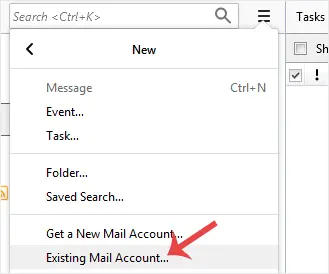
- Click on Existing Mail Account.
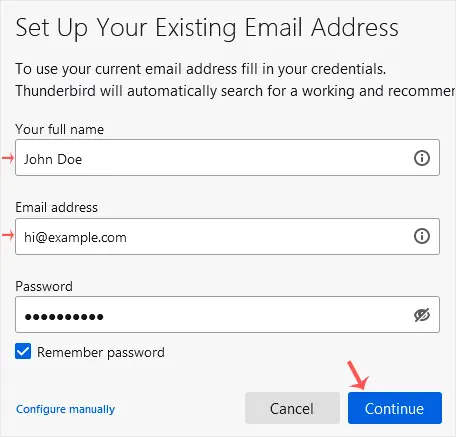
- In the Mail Setup Account, fill out your name, full email address, and your email account password. Proceed with Continue.
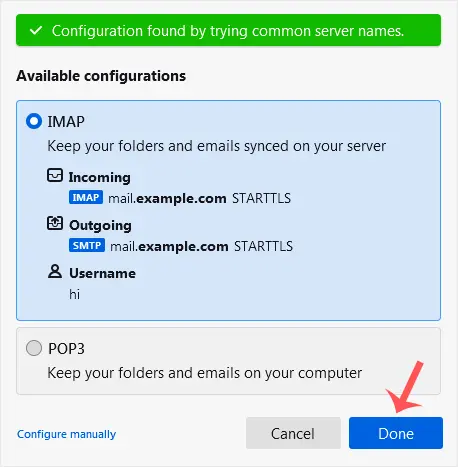
- It may take a few minutes to configure your email account. After that, click on Done.
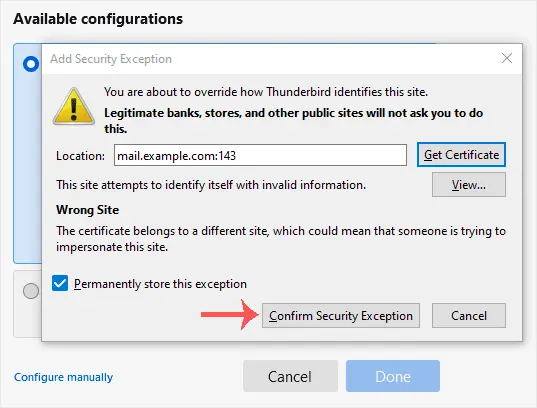
- If it shows an SSL Security Exception, click on Confirm Security Exception and the warning will disappear.

Conclusion
You now know how to setup a cPanel email account in Mozilla Thunderbird.
Related:
- Download Mozilla Thunderbird for Windows: https://download.mozilla.org/?product=thunderbird-142.0-SSL&os=win64&lang=en-US
- Download Mozilla Thunderbird for MacOS: https://download.mozilla.org/?product=thunderbird-142.0-SSL&os=osx&lang=en-US
- Download Mozilla Thunderbird for Linux: https://download.mozilla.org/?product=thunderbird-142.0-SSL&os=linux64&lang=en-US
- Connect cPanel Email Account to Microsoft Outlook 2019
