
 👀 Choose SSD-powered VPS servers for increased speed, power, and security! Now 50% off- starting from only $3.19/mo.
This article provides a guide outlining how to transfer your domain from Bluehost to Rad Web Hosting.
How to Transfer Your Domain from Bluehost
Before a domain transfer can take place, you will need to take a few steps to prepare your domain for transfer.
Domain Transfer Checklist
The following steps provide a summary of steps to ensure a hassle-free domain transfer process:
- Domain name must be valid and free of Registry-imposed restrictions. The best way to check this is by checking the domain WHOIS record for the Domain Status and the Registry Expiration:
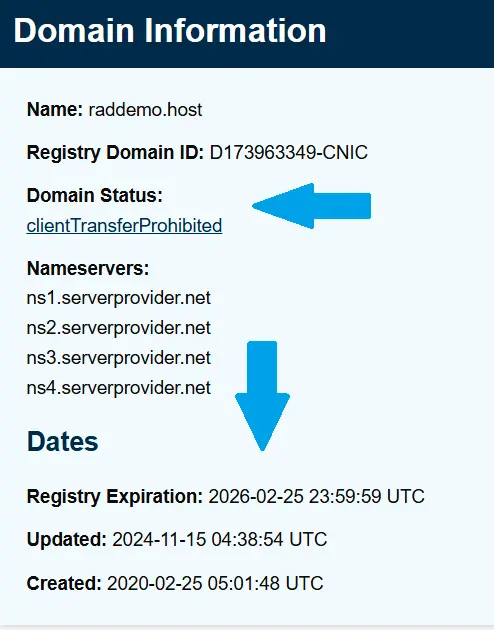
- The Domain Status Code "clientTransferProhibited" indicates the domain is locked at the registrar. This will need to be disabled before a domain can transfer out of the current registrar.
- The Registry Expiration exposes whether the domain is valid and not expired.
- Finally, in most cases, we will need to obtain an AUTH (or EPP) Code, which acts as a unique password required to verify the authenticity of the Domain Transfer request.
Let's get started with preparing the domain for transfer. We'll begin by disabling the Domain Lock at Bluehost.
How to Unlock your Domain at Bluehost
- Login to your account at Bluehost.
- Select an individual domain to access the Domain Settings page.
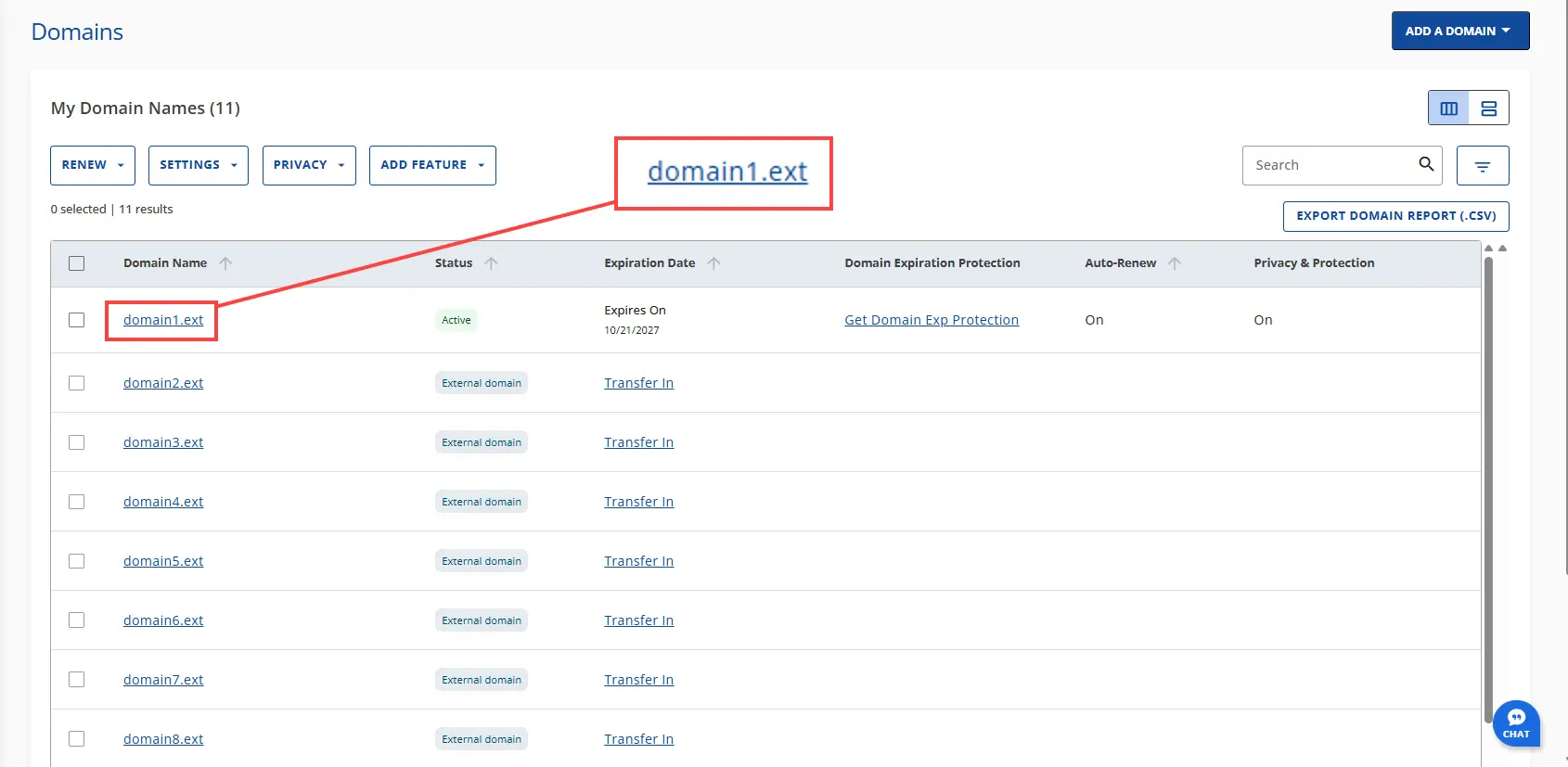
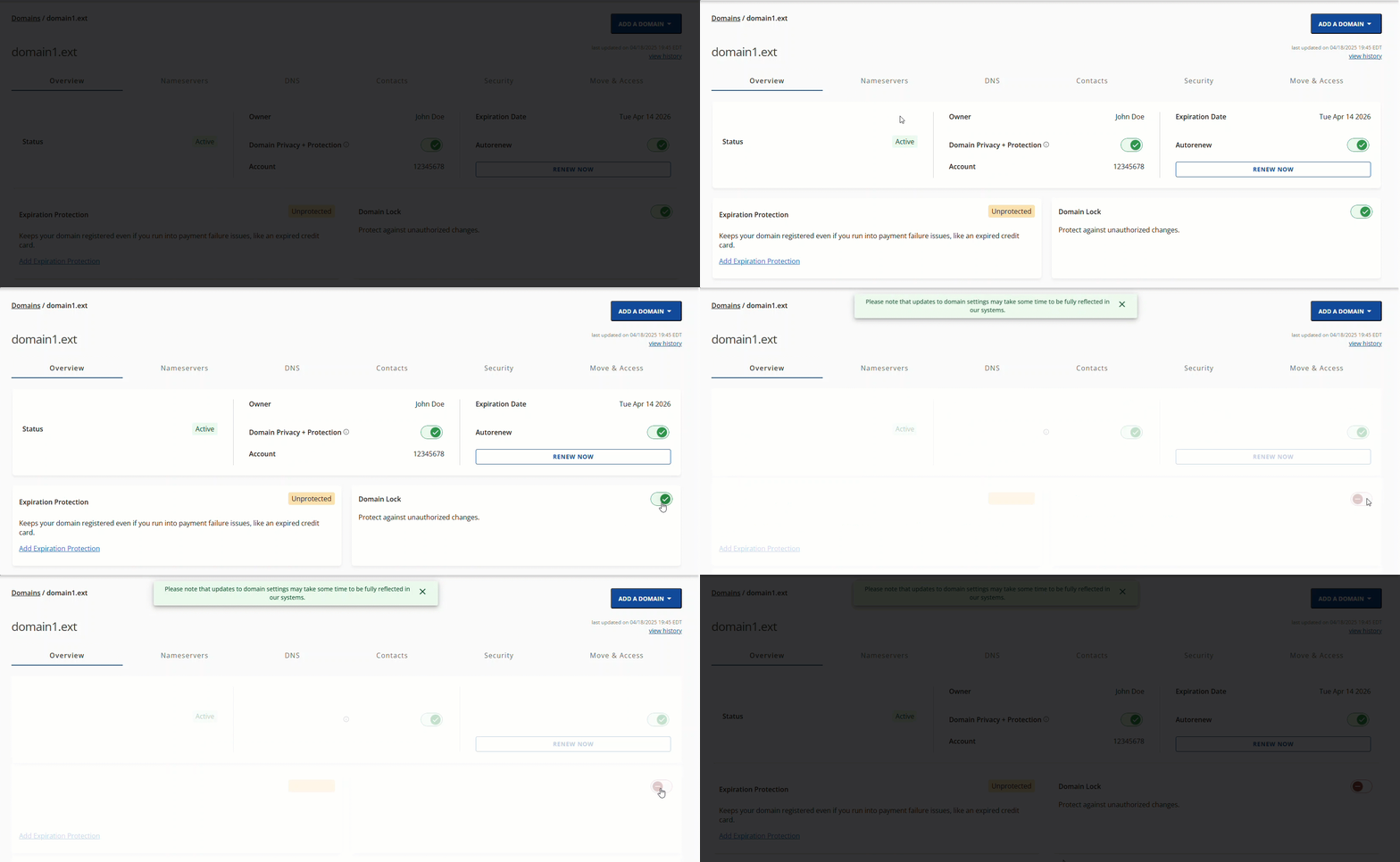
- Once the Domain Overview page loads, please navigate to the Domain Lock subtile.
- Click the Domain Lock Toggle button to turn off the Domain Lock feature.
- Once saved, a confirmation banner will appear at the top of the page, as shown in the GIF image below.
How to Obtain the EPP Code for Domains at Bluehost
- Sign in to your Bluehost Domain Portfolio.
- Select the specific domain you'll be transferring.
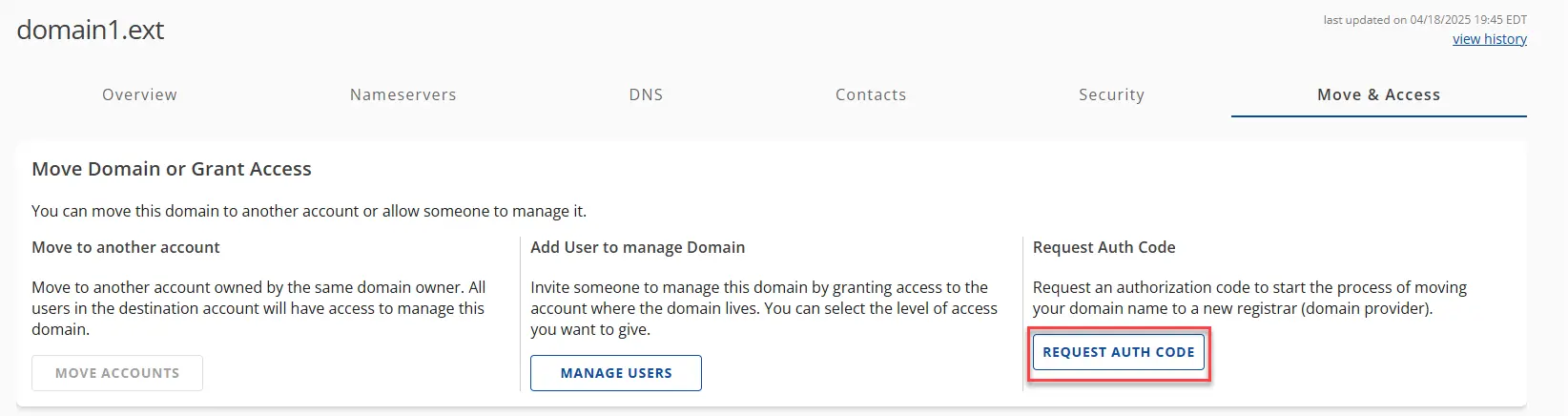
- Once the Domain Overview page loads, please click the Move & Access sub-navigation tab.
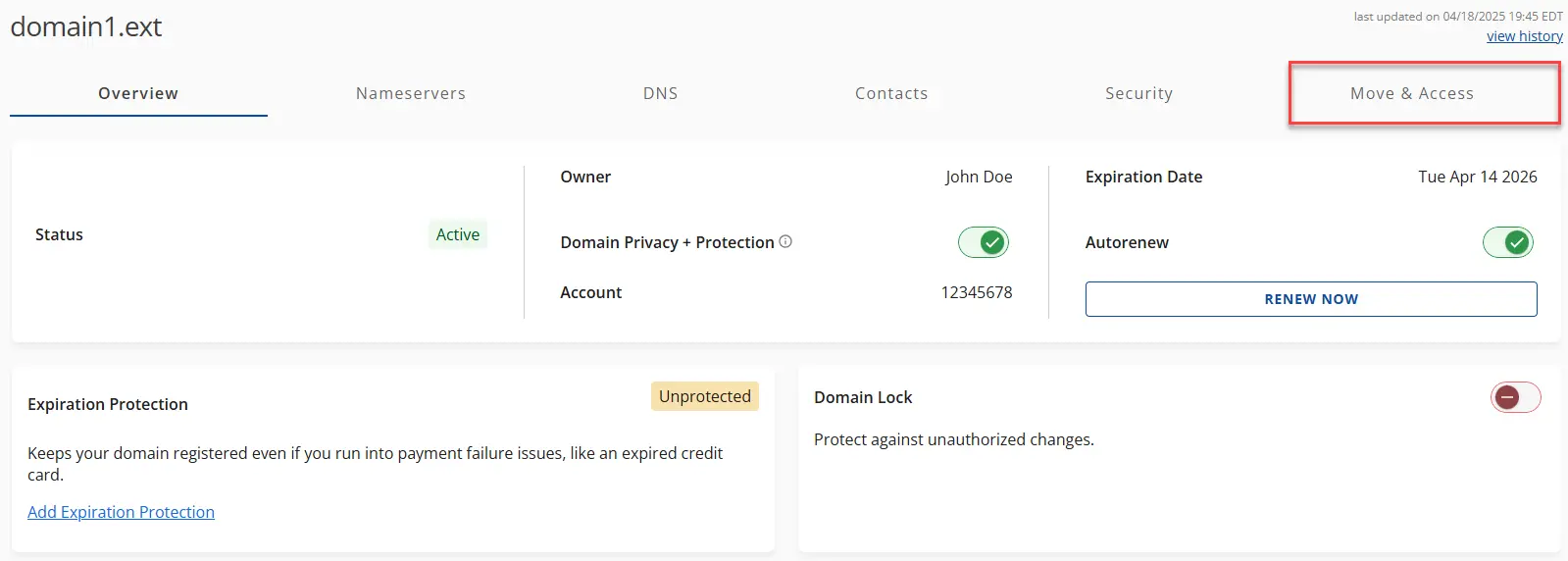
- Click on the REQUEST AUTH CODE under the Request Auth Code sub-section.
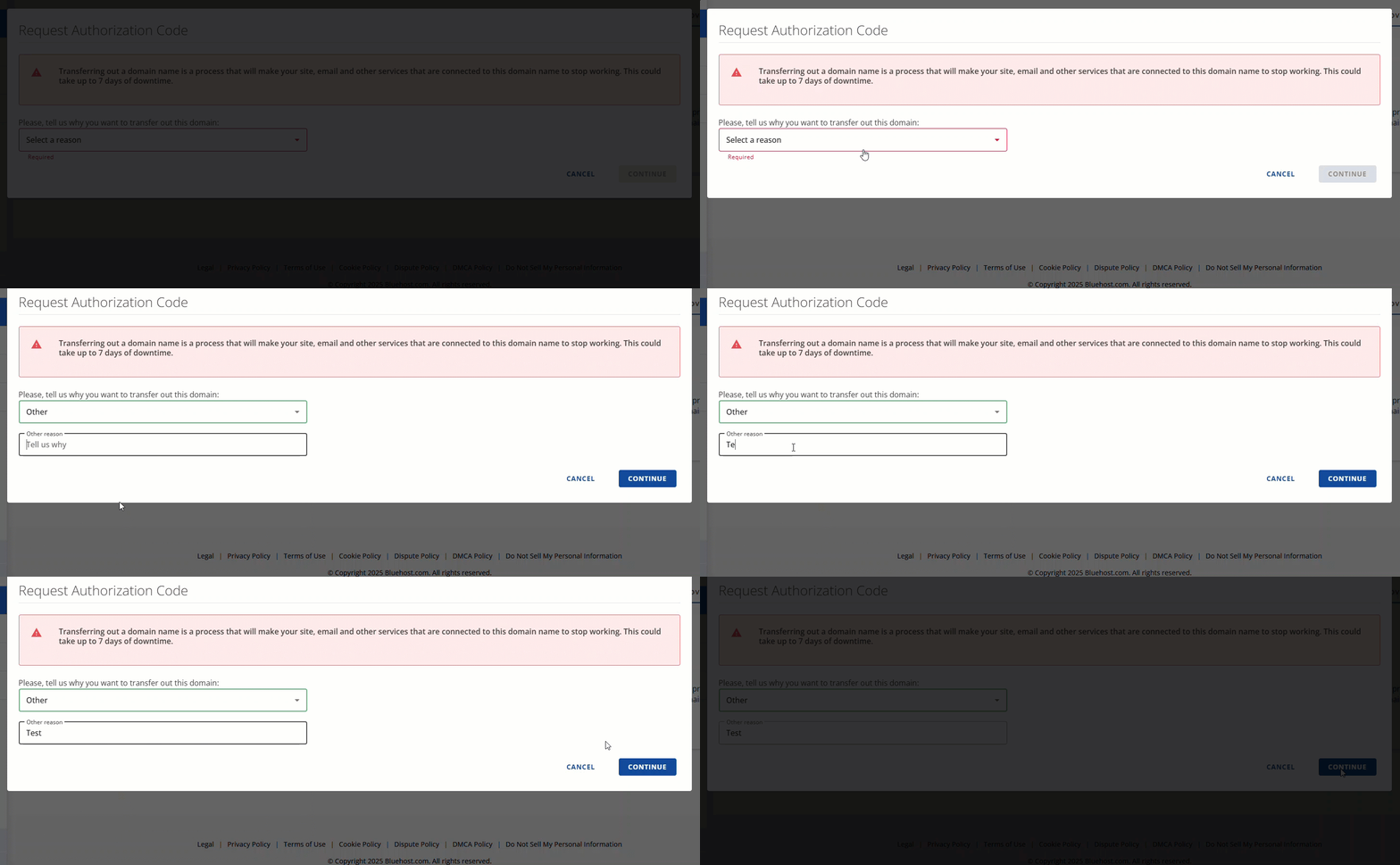
- On the Request Authorization Code popup, select any option to prooceed.
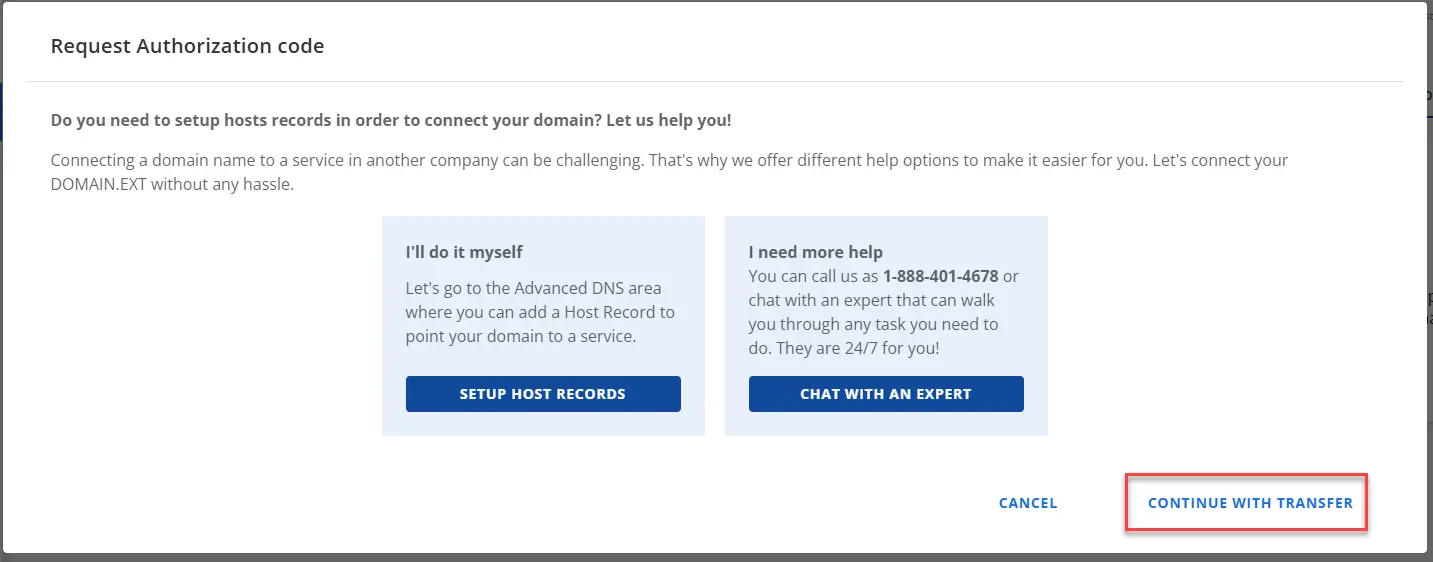
- Click the CONTINUE WITH TRANSFER option.
- Lastly, click the SEND AUTH CODE button.


Now, your domain is ready to be transferred.
How to Transfer Your Domain from Bluehost to Rad Web Hosting
Transferring domains to Rad Web Hosting is a simple and straightforward process that we have outlined below:
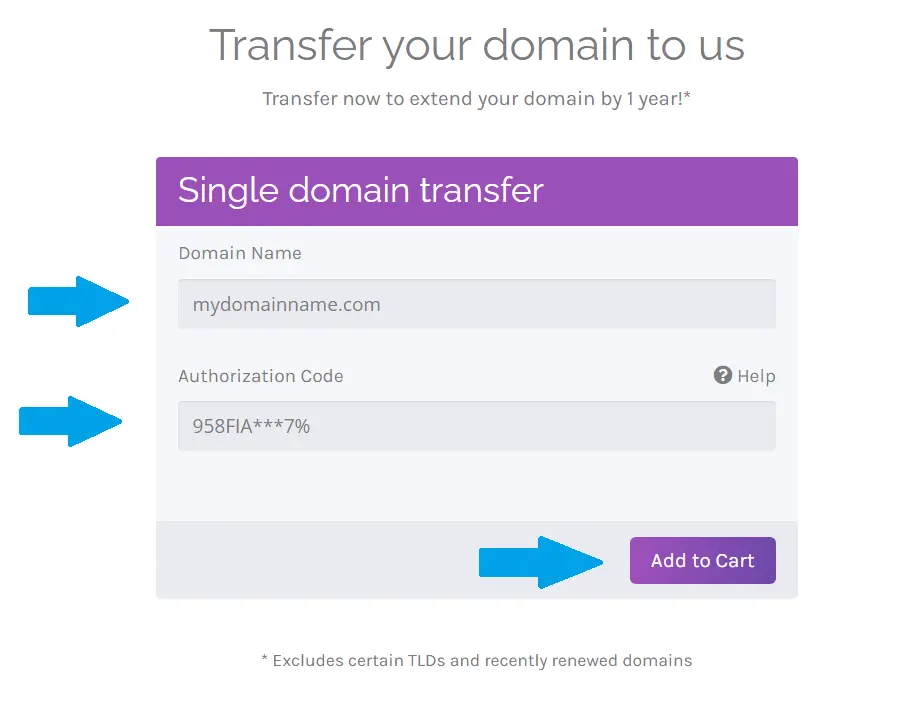
- Access the Domain Transfers page from our website.
- Enter the domain name.
- Enter the AUTH/EPP code retrieved in the prior steps.
- Click "Add to Cart".
- At the Domains Configuration screen, choose whether to enable Domain Privacy.
- Enter desired Nameservers (Leave the default to utilize Free DNS Management and Email Forwarding).
- Click "Continue".
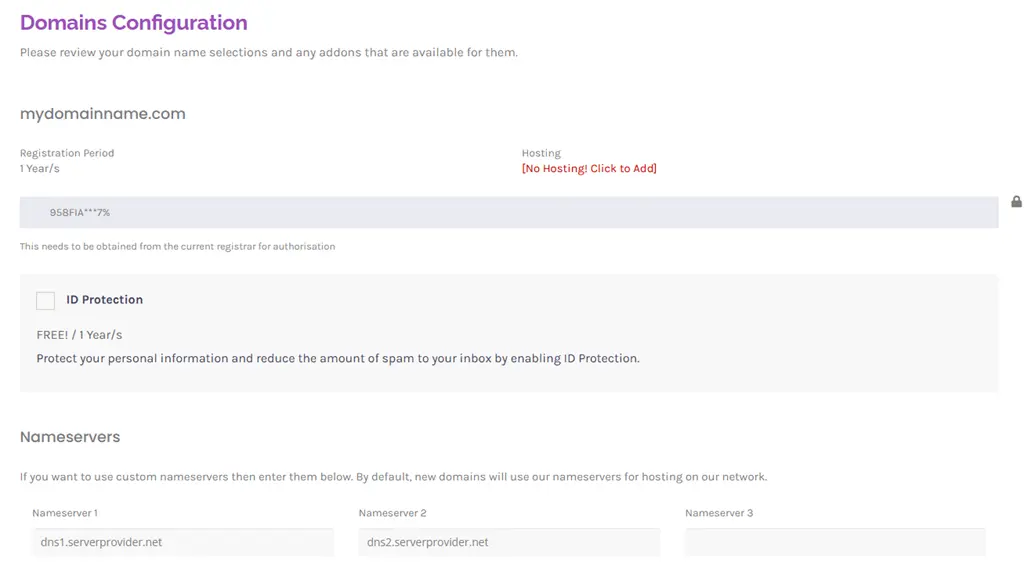
- On Review and Checkout, confirm your order preferences and Click "Checkout" to proceed to the checkout.
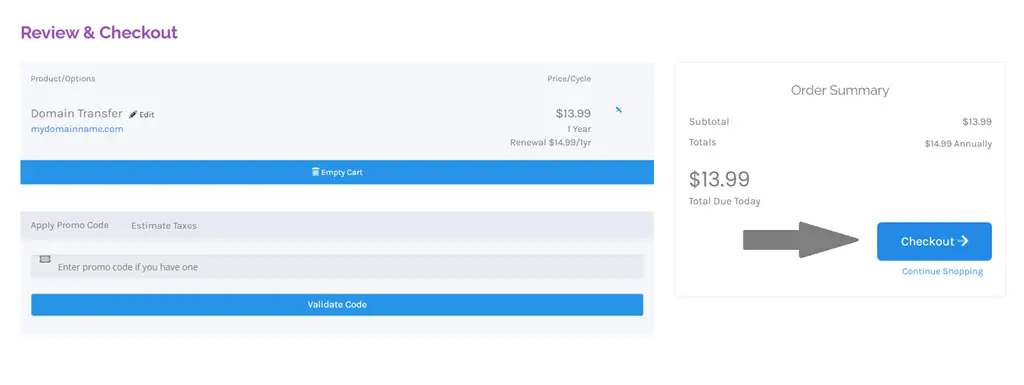
- Complete the Checkout process by logging in or creating a new account and paying the Invoice.
- Upon payment receipt, your domain transfer will be initiated and an email confirmation will be sent with the details.
Domain transfers typically take 5-7 days to complete, but you may be able to help the process by approving the transfer.
An email will be sent to confirm successful domain transfer once the domain is active in your account.
Conclusion
You now know how to transfer your domain from Bluehost to Rad Web Hosting.
