
 👀 Choose SSD-powered VPS servers for increased speed, power, and security! Now 50% off- starting from only $3.19/mo.
This article provides a guide for how to create and manage FTP accounts in cPanel for cPanel Shared Hosting users.
How to Create and Manage FTP Accounts in cPanel
FTP (File Transfer Protocol) accounts allow users to upload, download, and manage files on a server. In cPanel, you can create and manage FTP accounts easily. Follow these steps:
Creating an FTP Account in cPanel
- Log in to cPanel
- Access your cPanel by visiting
https://yourdomain.com/cpaneland entering your credentials.
- Access your cPanel by visiting
- Navigate to the FTP Accounts Section
- Under the Files section, click on FTP Accounts.
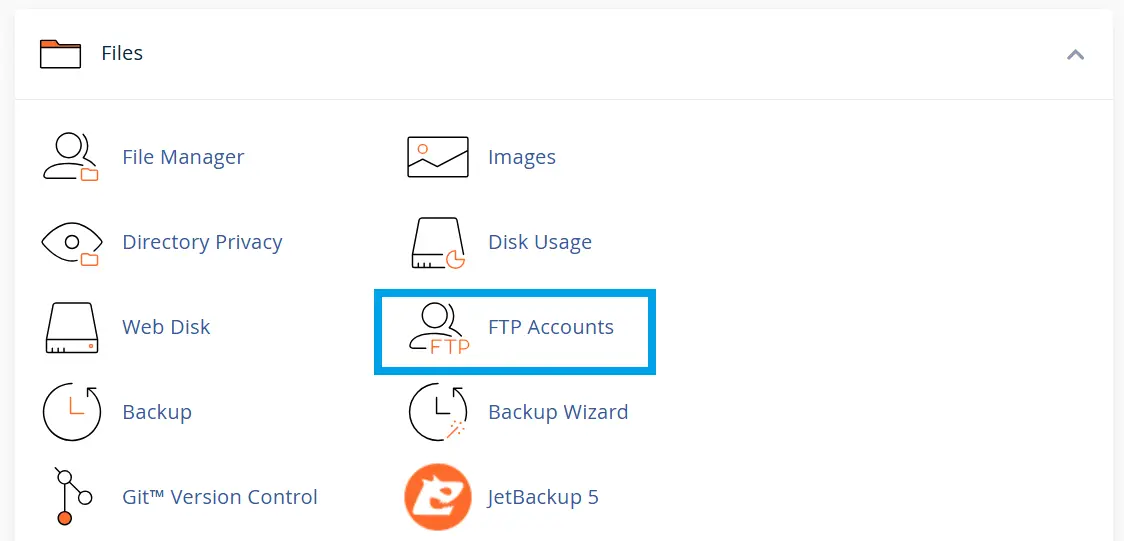
- Under the Files section, click on FTP Accounts.
- Enter FTP Account Details
- Username: Enter a unique username. It will be formatted as
username@yourdomain.com. - Password: Choose a strong password or use the password generator.
- Directory: Specify the directory the FTP user should have access to. Leave it blank to give full access to the root directory.
- Quota: Set a storage limit for the FTP account or select Unlimited.
- Username: Enter a unique username. It will be formatted as
- Click on "Create FTP Account"
- The account will now be listed under "FTP Accounts."
Managing FTP Accounts in cPanel
Once created, you can modify or delete FTP accounts anytime.
- Change Password
- Find the FTP account in the list.
- Click Change Password, enter a new password, and save.
- Change Quota
- Click Change Quota, set a new limit, and save.
- Delete an FTP Account
- Click Delete next to the account.
- Choose whether to delete the associated files or keep them.
- Configure FTP Client
- Click Configure FTP Client for auto-setup files and manual settings.
- Use the credentials to connect via software like FileZilla.
Troubleshooting FTP Issues
- Incorrect Login Credentials: Double-check the username and password.
- Connection Errors: Ensure the FTP hostname is correct (usually
ftp.yourdomain.com). - Permission Denied: The assigned directory may be incorrect.
- Firewall/Port Issues: Ensure ports 21 (FTP) and 22 (SFTP) are open.
Following these steps, you can efficiently create and manage FTP accounts in cPanel.
