
 👀 Choose SSD-powered VPS servers for increased speed, power, and security! Now 50% off- starting from only $3.19/mo.
This article provides a guide for how to restore partial backups in cPanel.
How to Restore Partial Backups in cPanel
You can easily restore a cPanel partial backup. Please, note that restoring such a backup will overwrite your existing data.
- Log in to your cPanel account.
- In the Files section, click on Backup Wizard.

- Under Backup/Restore, click on Restore.
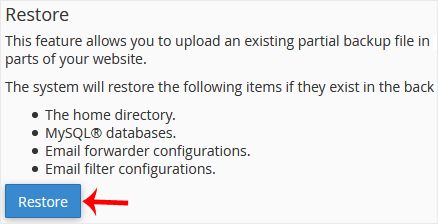
- Under Select Restore Type, choose the appropriate option.

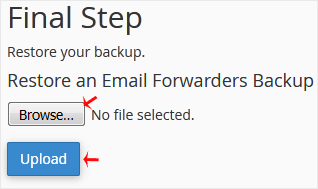
- Click on Browse. Select the backup file from your computer and click on Upload.
Conclusion
You now know how to restore partial backups in cPanel.
