
 👀 Choose SSD-powered VPS servers for increased speed, power, and security! Now 50% off- starting from only $3.19/mo.
This article provides a guide for how to remotely connect to VNC console for VPS management.
What is VNC Server?
Rad Web Hosting provides several ways to remotely connect to your Cloud VPS and KVM VPS servers. One way to connect is through the VNC console.
VNC, or Virtual Network Computing, is a graphical desktop sharing software, that provides access to control a remote system. The VNC console is similar to other console-based remote connections, such as connecting with Putty SSH client.
By default, the VNC service is active for all VPS and cloud servers. To manage a cloud or VPS server by VNC console, users can establish connection to the VNC console using a web-based VNC client built into the VPS panel. For details, regarding establishing VNC connection from the VPS panel, please see the following guide:
Alternatively, it is also possible to establish a VNC console session to the remote cloud or VPS directly from a local machine, by downloading a VNC client (to the computer/server that will access the remote cloud or VPS).
Install VNC Client
For users that prefer to remotely connect via VNC console to their servers, without accessing the VPS panel, a VNC client is required to be installed.
While there are numerous VNC clients available with varying levels of compatibility, Rad Web Hosting recommends using RealVNC Viewer. RealVNC Viewer provides VNC client applications for Windows, MAC OS, Linux, and Raspberry Pi desktops, as well as iOS and Android mobile applications.
Download RealVNC Viewer and install the appropriate application for your device. Open the RealVNC Viewer application once the installation is complete.
Remotely Connect to VNC Console for VPS Management
Use the VNC connection details provided with the cloud or VPS server you wish to manage. To establish the VNC console session, the VNC client will use the VNC server IP and a specific port number, unique to each virtual server. Enter this into RealVNC Viewer and authenticate using the VNC password (this is different from root password).
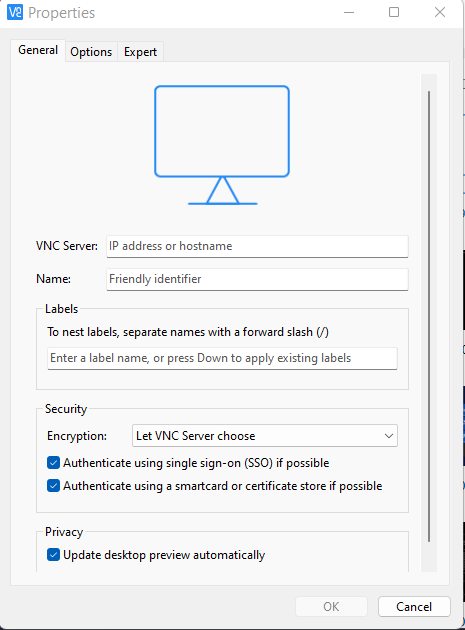
Now, the client will establish connection to your VPS or cloud server and you can access and manage it through the VNC console.
Conclusion
You now know how to connect to VNC console for VPS.
