
 👀 Choose SSD-powered VPS servers for increased speed, power, and security! Now 50% off- starting from only $3.19/mo.
This article provides a guide demonstrating how to resolve WHMCS cron PHP version mismatch.
A WHMCS Cron PHP Version Mismatch occurs when the PHP version used by the WHMCS cron job does not match, or is not compatible with, the PHP version used by the WHMCS web application.
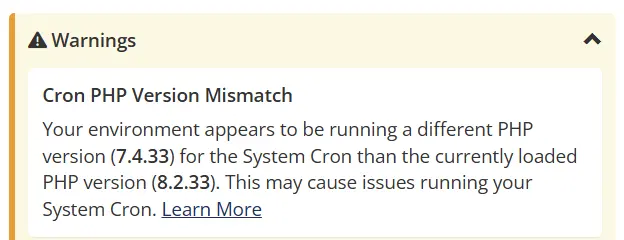
This is especially common on cPanel/WHM servers using EasyApache 4, where multiple PHP versions may be installed simultaneously. WHMCS may run under PHP 8.1 or PHP 8.2 through Apache/PHP-FPM while the system php command used by cron points to an older—or newer—PHP version.
Typical symptoms include:
- WHMCS cron jobs fail unexpectedly.
- WHMCS reports that the cron PHP version differs from the application PHP version.
- The WHMCS Automation Status page reports that cron has not completed.
- Running the cron manually produces compatibility or extension errors.
- The cron works in a browser but fails from the command line.
- IonCube Loader errors occur only during cron execution.
- Composer or WHMCS dependencies report an unsupported PHP version.
- Cron emails contain
Fatal error,Deprecated,ionCube, or missing-extension messages.
The fix is usually straightforward: explicitly configure cron to use the same supported PHP CLI binary that WHMCS uses.
How to Resolve WHMCS Cron PHP Version Mismatch
To resolve WHMCS Cron PHP Version Mismatch, follow the steps below:
-
Determine the PHP Version WHMCS Uses
Start by determining which PHP version serves the WHMCS installation through the web server.
Login to WHMCS, then navigate to:
Utilities → System → PHP Info
Depending on the WHMCS version, you may also find this information under:
System Settings → System Health Status
Look for:
PHP VersionFor example:
PHP Version 8.1.33You can also create a temporary PHP file inside the WHMCS document root:
<?php
phpinfo();
Save it temporarily as:
phpinfo.phpThen access:
https://yourdomain.example/phpinfo.phpLook for:
PHP VersionImmediately delete the file afterward:
rm -f /home/USERNAME/public_html/phpinfo.phpLeaving a
phpinfo()page publicly accessible can expose server configuration information. -
Determine Which PHP Version Cron Currently Uses
SSH into the server and run:
php -vExample:
PHP 7.4.33 (cli)
Copyright (c) The PHP Group
Zend Engine v3.4.0
Suppose WHMCS uses PHP 8.1 but the command above returns PHP 7.4.
That confirms the mismatch:
WHMCS Web PHP:     PHP 8.1
Default CLI PHP:   PHP 7.4
You should also determine where the generic PHP command points:
which phpFor example:
/usr/bin/phpThen:
readlink -f /usr/bin/phpDo not immediately change the global
/usr/bin/phpsymlink simply to fix WHMCS. Other scripts or applications may depend on the current system PHP version.Instead, configure WHMCS cron to explicitly use the desired PHP binary.
-
Find the Available PHP CLI Versions
On a cPanel/EasyApache 4 system, installed PHP binaries normally reside under:
/opt/cpanel/List them:
ls -d /opt/cpanel/ea-php*You might see:
/opt/cpanel/ea-php74
/opt/cpanel/ea-php80
/opt/cpanel/ea-php81
/opt/cpanel/ea-php82
/opt/cpanel/ea-php83
Each installation generally has its PHP CLI binary at:
/opt/cpanel/ea-phpXX/root/usr/bin/phpFor example, PHP 8.1:
/opt/cpanel/ea-php81/root/usr/bin/phpCheck it:
/opt/cpanel/ea-php81/root/usr/bin/php -vExample:
PHP 8.1.33 (cli) (built: ...)
Copyright (c) The PHP Group
Zend Engine v4.1.x
If WHMCS runs on PHP 8.1, this is usually the binary you want cron to use.
-
Locate the WHMCS Cron File
Modern WHMCS installations frequently place cron files outside the public web directory.
A common configuration might be:
/home/USERNAME/whmcs_crons/cron.phpOlder/default installations may use:
/home/USERNAME/public_html/crons/cron.phpor:
/home/USERNAME/public_html/whmcs/crons/cron.phpIf you are unsure, check the WHMCS configuration.
The cron directory may be defined in:
configuration.phpFor example:
$crons_dir = '/home/USERNAME/whmcs_crons/';You can also locate it from SSH:
find /home/USERNAME -type f -name cron.php 2>/dev/nullBe careful if several applications use a file named
cron.php. -
Test the Correct PHP Binary Against WHMCS
Before changing the cron job, run the WHMCS cron manually with the PHP binary you intend to use.
For PHP 8.1:
/opt/cpanel/ea-php81/root/usr/bin/php -q /home/USERNAME/whmcs_crons/cron.phpFor additional output while troubleshooting:
/opt/cpanel/ea-php81/root/usr/bin/php -q /home/USERNAME/whmcs_crons/cron.php -vvvOn recent WHMCS versions, you can also explicitly run the automation task utility:
/opt/cpanel/ea-php81/root/usr/bin/php -q /home/USERNAME/whmcs_crons/cron.php -F all -vvvThe exact command options available can vary by WHMCS release, but the critical part is the PHP executable:
/opt/cpanel/ea-php81/root/usr/bin/phpinstead of simply:
php -
Update the WHMCS Cron Job
This is the actual fix in most cases.
A problematic cron entry may look like:
*/5 * * * * php -q /home/USERNAME/whmcs_crons/cron.phpor:
*/5 * * * * /usr/bin/php -q /home/USERNAME/whmcs_crons/cron.phpReplace it with the explicit EasyApache PHP binary.
For PHP 8.1:
*/5 * * * * /opt/cpanel/ea-php81/root/usr/bin/php -q /home/USERNAME/whmcs_crons/cron.phpFor PHP 8.2:
*/5 * * * * /opt/cpanel/ea-php82/root/usr/bin/php -q /home/USERNAME/whmcs_crons/cron.phpFor PHP 8.3:
*/5 * * * * /opt/cpanel/ea-php83/root/usr/bin/php -q /home/USERNAME/whmcs_crons/cron.phpUse whichever PHP branch your WHMCS release supports and your WHMCS installation is configured to use.
-
Update the Cron Through cPanel
If the WHMCS account uses cPanel, open:
cPanel → Advanced → Cron Jobs
Find the WHMCS cron.
Change something like:
php -q /home/myhost/whmcs_crons/cron.phpto:
/opt/cpanel/ea-php81/root/usr/bin/php -q /home/myhost/whmcs_crons/cron.phpFor example, the entire cron may become:
*/5 * * * * /opt/cpanel/ea-php81/root/usr/bin/php -q /home/myhost/whmcs_crons/cron.phpThis is preferable to relying upon whichever PHP happens to be returned by the account's
PATH. -
Update the Cron Directly from SSH
For the account owner:
crontab -eOr, as root:
crontab -u USERNAME -eCheck the current entries first:
crontab -u USERNAME -lFind the WHMCS entry and change it to the correct PHP executable.
For example:
*/5 * * * * /opt/cpanel/ea-php81/root/usr/bin/php -q /home/USERNAME/whmcs_crons/cron.phpVerify afterward:
crontab -u USERNAME -l -
Check PHP CLI Extensions
Matching the PHP version alone is not always sufficient.
The CLI PHP installation must also have the PHP extensions WHMCS requires.
Check modules:
/opt/cpanel/ea-php81/root/usr/bin/php -mA WHMCS installation commonly needs modules such as:
curl
dom
fileinfo
gd
iconv
intl
json
mbstring
mysqli
openssl
pdo
pdo_mysql
simplexml
xml
zip
The exact requirements depend on the WHMCS release and enabled features.
Check specific extensions:
/opt/cpanel/ea-php81/root/usr/bin/php -m | grep -Ei 'curl|intl|mbstring|mysqli|pdo|xml|zip|ioncube' -
Verify IonCube Loader
WHMCS depends heavily on IonCube-encoded PHP components.
A common cron-only failure is:
The ionCube PHP Loader needs to be installed.Check:
/opt/cpanel/ea-php81/root/usr/bin/php -vYou should see something indicating IonCube Loader is loaded.
You can also run:
/opt/cpanel/ea-php81/root/usr/bin/php -i | grep -i ioncubeOr:
/opt/cpanel/ea-php81/root/usr/bin/php -m | grep -i ioncubeIf nothing is returned, inspect the PHP configuration.
-
11. Determine Which php.ini CLI Is Using
Run:
/opt/cpanel/ea-php81/root/usr/bin/php --iniExample:
Configuration File (php.ini) Path: /opt/cpanel/ea-php81/root/etc
Loaded Configuration File:         /opt/cpanel/ea-php81/root/etc/php.ini
Scan for additional .ini files in: /opt/cpanel/ea-php81/root/etc/php.d
This is important because PHP CLI and PHP-FPM can use related but not necessarily identical configurations.
Check important values:
/opt/cpanel/ea-php81/root/usr/bin/php -i | grep -E 'memory_limit|max_execution_time|date.timezone' -
Check the WHMCS Cron Configuration
WHMCS generally expects the automation cron to execute frequently—commonly every five minutes.
A typical entry is:
*/5 * * * * /opt/cpanel/ea-php81/root/usr/bin/php -q /home/USERNAME/whmcs_crons/cron.phpDo not normally schedule the entire WHMCS cron only once per day.
WHMCS determines internally which automation tasks are due each time the cron runs.
For example:
12:00  cron runs
12:05  cron runs
12:10  cron runs
...
Daily tasks execute when their configured automation time arrives.
-
Run the Cron as the Actual cPanel User
This is an important diagnostic step.
Testing as
rootmay not reproduce problems encountered by the user's cron environment.Run:
sudo -u USERNAME /opt/cpanel/ea-php81/root/usr/bin/php -q /home/USERNAME/whmcs_crons/cron.phpOr:
su - USERNAMEThen:
/opt/cpanel/ea-php81/root/usr/bin/php -q /home/USERNAME/whmcs_crons/cron.phpFor verbose debugging:
/opt/cpanel/ea-php81/root/usr/bin/php -q /home/USERNAME/whmcs_crons/cron.php -F all -vvvThis better reproduces:
- permissions
- environment variables
- account limits
- PATH behavior
- file ownership
- user-level PHP configuration
-
Compare Web PHP and CLI PHP
A useful diagnostic comparison is:
Web PHP
From WHMCS PHP Info:
PHP Version => 8.1.xCLI PHP
Run:
/opt/cpanel/ea-php81/root/usr/bin/php -r 'echo PHP_VERSION, PHP_EOL;'Expected:
8.1.xYou can also check the SAPI:
/opt/cpanel/ea-php81/root/usr/bin/php -r 'echo PHP_SAPI, PHP_EOL;'Expected:
cliA difference in SAPI is normal:
Web:  fpm-fcgi
Cron: cli
The important issue is that the PHP version and required modules are compatible.
-
Check for Multiple WHMCS Cron Entries
Another common problem is having an old cron entry still running with the wrong PHP version.
Search the account crontab:
crontab -u USERNAME -lThen inspect system cron locations:
grep -R "whmcs_crons/cron.php" /etc/cron* /var/spool/cron 2>/dev/nullOr more broadly:
grep -R "cron.php" /var/spool/cron /etc/cron.d /etc/crontab 2>/dev/nullYou may discover both:
*/5 * * * * /usr/bin/php /home/USERNAME/whmcs_crons/cron.phpand:
*/5 * * * * /opt/cpanel/ea-php81/root/usr/bin/php /home/USERNAME/whmcs_crons/cron.phpRemove the obsolete one.
Running duplicate WHMCS cron jobs can cause:
- overlapping automation tasks
- duplicate emails
- duplicate invoice processing
- excessive resource usage
- lock contention
- misleading cron status
-
Check for Hard-Coded PHP Paths
If the cron appears correct but WHMCS still invokes another PHP version, search for hard-coded paths.
For example:
grep -R "/usr/bin/php" /home/USERNAME/whmcs_crons 2>/dev/nullAnd:
grep -R "ea-php" /home/USERNAME/whmcs_crons 2>/dev/nullYou can also inspect custom WHMCS hooks and modules:
grep -R "/usr/bin/php" /home/USERNAME/public_html/modules /home/USERNAME/public_html/includes/hooks 2>/dev/nullCustom modules occasionally spawn secondary PHP processes using commands such as:
exec('/usr/bin/php script.php');Those processes could therefore use a different PHP version even though the primary WHMCS cron is correct.
-
Check for Environment PATH Differences
Cron executes with a much more limited environment than an interactive shell.
Your SSH shell might return:
which phpas:
/opt/cpanel/ea-php81/root/usr/bin/phpwhile cron might resolve:
phpto:
/usr/bin/phpYou can see the cron environment by temporarily creating:
* * * * * env > /home/USERNAME/cron-environment.txtAfter it executes:
cat /home/USERNAME/cron-environment.txtThen remove the diagnostic cron entry.
This is another reason explicit paths are strongly preferable:
/opt/cpanel/ea-php81/root/usr/bin/phpinstead of:
php -
Check PHP Version Requirements Before Upgrading
Do not automatically switch the WHMCS cron to the newest installed PHP version.
For example, just because the server has:
ea-php81
ea-php82
ea-php83
ea-php84
does not mean your installed WHMCS release supports all of them.
Use the PHP version supported by your specific WHMCS release.
If WHMCS currently runs successfully under PHP 8.1, then using:
/opt/cpanel/ea-php81/root/usr/bin/phpfor cron is generally the safest correction.
Do not use PHP 8.4 simply because it is newer unless your WHMCS version and installed IonCube Loader support it.
-
Check cPanel MultiPHP Manager
On cPanel systems, verify the domain's assigned PHP version under:
WHM → Software → MultiPHP Manager
or:
cPanel → Software → MultiPHP Manager
Locate the WHMCS domain.
For example:
billing.example.com ea-php81That strongly indicates the cron should normally use:
/opt/cpanel/ea-php81/root/usr/bin/phpassuming WHMCS itself supports that version.
-
Check PHP-FPM
If WHMCS uses PHP-FPM, the web request may be executing under PHP 8.1 even though the server's default CLI PHP is something completely different.
In WHM:
MultiPHP Manager → User Domain Settings
You may have:
Domain: billing.example.com
PHP Version: ea-php81
PHP-FPM: Enabled
This is perfectly valid.
The cron does not run through PHP-FPM.
Cron uses PHP CLI, so you must independently specify:
/opt/cpanel/ea-php81/root/usr/bin/phpThe intended configuration therefore becomes:
WHMCS website
     |
     +--- Apache / PHP-FPM
     |        |
     |        +--- ea-php81
     |
WHMCS cron
     |
     +--- PHP CLI
              |
              +--- /opt/cpanel/ea-php81/root/usr/bin/php
Both use PHP 8.1, but through different SAPIs.
-
Verify File Ownership and Permissions
A PHP mismatch can occasionally mask a permissions problem.
Check:
ls -l /home/USERNAME/whmcs_crons/cron.phpYou might expect something similar to:
-rw-r--r-- 1 USERNAME USERNAME ...Check the directory:
ls -ld /home/USERNAME/whmcs_cronsThe WHMCS account must be able to read the cron files.
Also confirm that configuration files referenced by the cron remain accessible.
-
Capture Cron Errors to a Log File
Instead of waiting for cron emails, temporarily redirect output:
*/5 * * * * /opt/cpanel/ea-php81/root/usr/bin/php -q /home/USERNAME/whmcs_crons/cron.php >> /home/USERNAME/whmcs-cron.log 2>&1Then watch the log:
tail -f /home/USERNAME/whmcs-cron.logOr inspect the most recent 100 lines:
tail -n 100 /home/USERNAME/whmcs-cron.logOnce troubleshooting is complete, either remove the redirection or configure an appropriate log-rotation strategy.
-
Check for PHP Fatal Errors
Run:
/opt/cpanel/ea-php81/root/usr/bin/php -d display_errors=1 -d error_reporting=E_ALL \
-q /home/USERNAME/whmcs_crons/cron.php
This can reveal errors such as:
Call to undefined function ...or:
Class not foundor:
The ionCube Loader for PHP needs to be installedor:
Composer detected issues in your platformThese indicate that the PHP executable is either:
- the wrong version,
- missing an extension,
- loading an incorrect
php.ini, - or incompatible with a module/addon.
-
Check PHP Memory Limit
WHMCS cron performs considerably more work than many normal web requests.
Check:
/opt/cpanel/ea-php81/root/usr/bin/php -r 'echo ini_get("memory_limit"), PHP_EOL;'Example:
128MFor larger WHMCS installations, cron may require substantially more.
You can also check:
/opt/cpanel/ea-php81/root/usr/bin/php -i | grep memory_limitIf troubleshooting memory exhaustion, temporarily test with:
/opt/cpanel/ea-php81/root/usr/bin/php -d memory_limit=512M \
-q /home/USERNAME/whmcs_crons/cron.php -F all -vvv
If this resolves the issue, correct the relevant PHP configuration rather than permanently relying on a command-line override unless that behavior is intentional.
-
Confirm Cron Is Running After the Fix
After modifying the cron, allow it to execute and check WHMCS.
Navigate to:
Utilities → System → Automation Status
or the corresponding automation status page for your WHMCS version.
Verify that the cron execution time updates.
You can also inspect WHMCS logs under:
System Logs
including:
- Activity Log
- Module Log
- Email Log
- System Health
The exact menu names vary slightly between releases.
Recommended cPanel/WHM Configuration
For a WHMCS installation using PHP 8.1, a production cron entry commonly looks like:
*/5 * * * * /opt/cpanel/ea-php81/root/usr/bin/php -q /home/USERNAME/whmcs_crons/cron.php
For example:
*/5 * * * * /opt/cpanel/ea-php81/root/usr/bin/php -q /home/myhost/whmcs_crons/cron.php
Manual debugging:
/opt/cpanel/ea-php81/root/usr/bin/php -q \
/home/myhost/whmcs_crons/cron.php -F all -vvv
That approach is considerably safer than:
*/5 * * * * php -q /home/myhost/whmcs_crons/cron.php
because it removes any ambiguity over which PHP binary cron will execute.
Quick Diagnostic Checklist
When diagnosing this problem, work through these checks:
-
Determine the PHP version WHMCS uses in the browser.
-
Run:
php -v - Check the appropriate EasyApache binary:
/opt/cpanel/ea-php81/root/usr/bin/php -v - Check IonCube:
/opt/cpanel/ea-php81/root/usr/bin/php -v - Check PHP modules:
/opt/cpanel/ea-php81/root/usr/bin/php -m - Check configuration:
/opt/cpanel/ea-php81/root/usr/bin/php --ini - Test WHMCS manually:
/opt/cpanel/ea-php81/root/usr/bin/php -q \ /home/USERNAME/whmcs_crons/cron.php -F all -vvv - Change the production cron to explicitly reference that PHP binary:
*/5 * * * * /opt/cpanel/ea-php81/root/usr/bin/php -q /home/USERNAME/whmcs_crons/cron.php -
Search for obsolete duplicate cron entries.
-
Confirm the WHMCS Automation Status timestamp updates.
Avoid Changing the Global PHP Binary
A tempting solution is to alter:
/usr/bin/php
so it globally points to the version WHMCS needs.
For example, avoid blindly doing something like:
ln -sf /opt/cpanel/ea-php81/root/usr/bin/php /usr/bin/php
That can affect:
- cPanel utilities
- Composer
- other cron jobs
- custom scripts
- monitoring applications
- third-party software
The safer architecture is:
Application A cron -> explicit PHP version
Application B cron -> explicit PHP version
WHMCS cron         -> explicit PHP version
For example:
*/5 * * * * /opt/cpanel/ea-php81/root/usr/bin/php /home/user/whmcs_crons/cron.php
0 * * * * /opt/cpanel/ea-php82/root/usr/bin/php /home/user/app2/task.php
That makes PHP upgrades controlled and predictable.
Bottom Line
For cPanel/EasyApache 4 servers, the most reliable resolution to a WHMCS Cron PHP Version Mismatch is to replace a generic cron command such as:
php -q /home/USERNAME/whmcs_crons/cron.php
with the explicit PHP CLI executable matching the PHP branch assigned to WHMCS:
/opt/cpanel/ea-php81/root/usr/bin/php -q /home/USERNAME/whmcs_crons/cron.php
Then verify the CLI installation has the correct IonCube Loader, PHP extensions, php.ini configuration, memory limit, and file permissions. This avoids changing server-wide PHP defaults and keeps the WHMCS web and automation environments aligned.