
 👀 Choose SSD-powered VPS servers for increased speed, power, and security! Now 50% off- starting from only $3.19/mo.
This article provides a guide demonstrating how to sign in to cPanel from the Hosting Dashboard (as opposed to direct browser login).
Info: This article applies to users with active cPanel Hosting or Reseller Hosting accounts.
How to Sign In to cPanel from the Hosting Dashboard
There are two ways to sign in to cPanel from the Hosting Dashboard:
Method 1: Sign in to cPanel from the Hosting Dashboard
To sign in to cPanel from the Hosting Dashboard, follow the steps below:
- Login to the Hosting Dashboard.
- From the Home Screen, check whether the service of the cPanel you wish to access is listed in the summary of recent services. If you have multiple services, the home screen will display only the most recently added.
- If your service is listed here, click the arrow to toggle the dropdown menu, and then click "Log in to cPanel" button of the associated service.
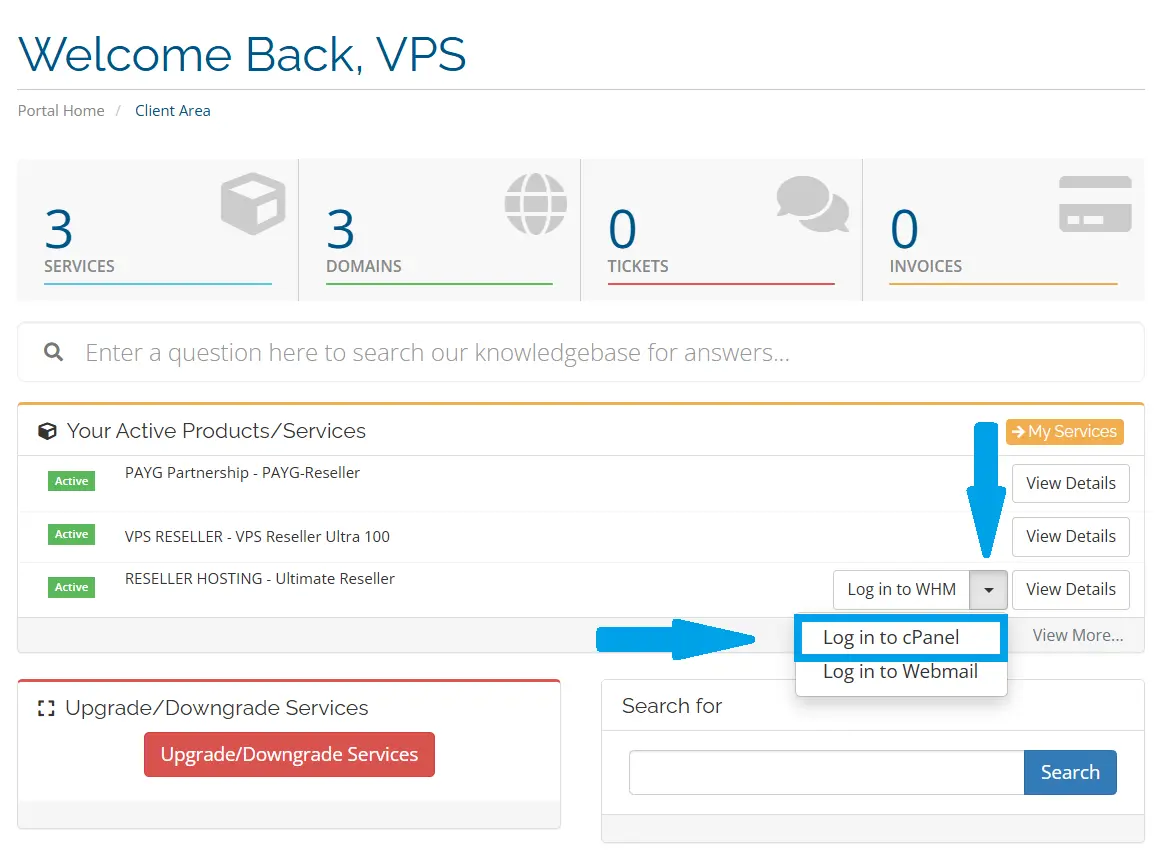
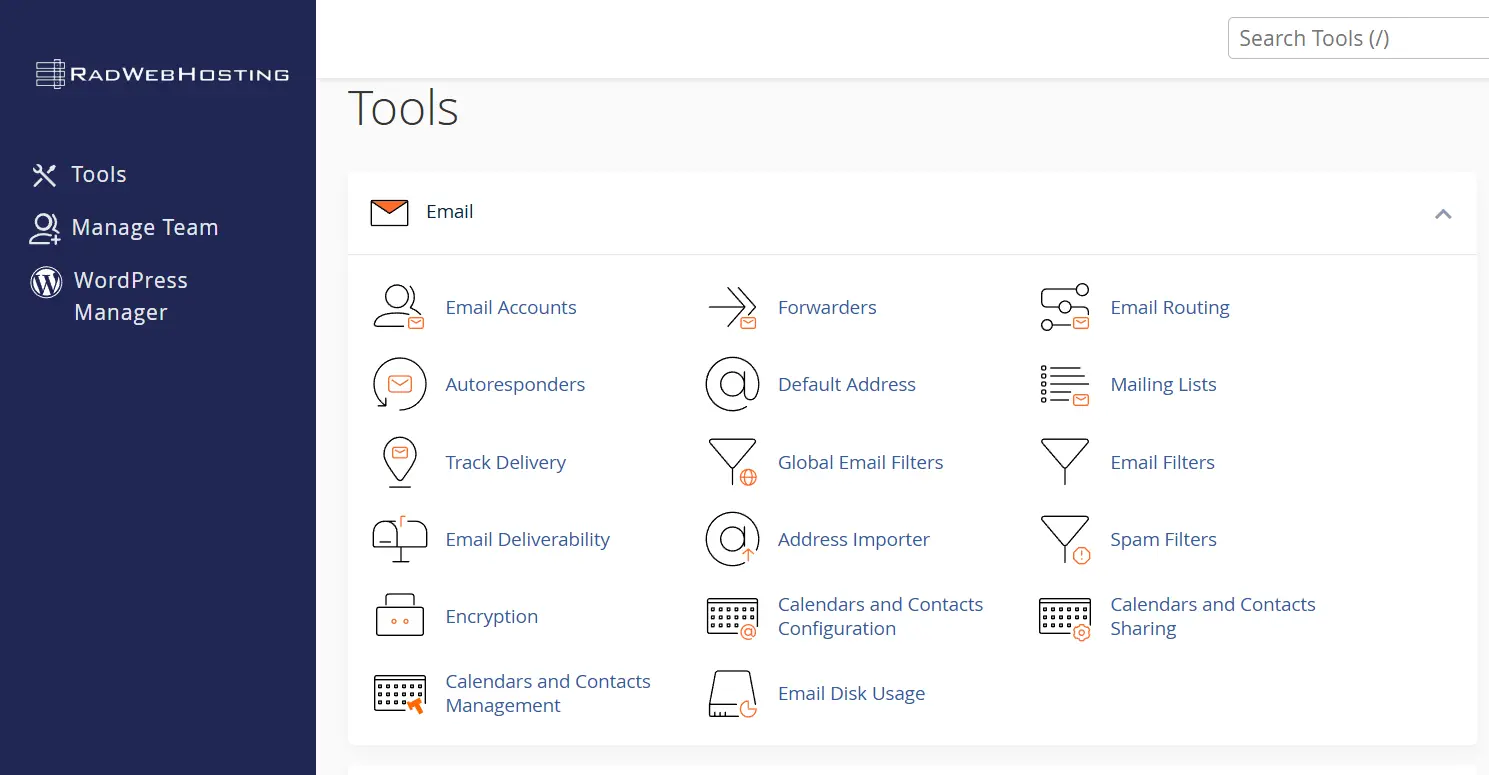
- You should be directly logged in to corresponding cPanel account:
Method 2: Sign in to cPanel from the Service Manager
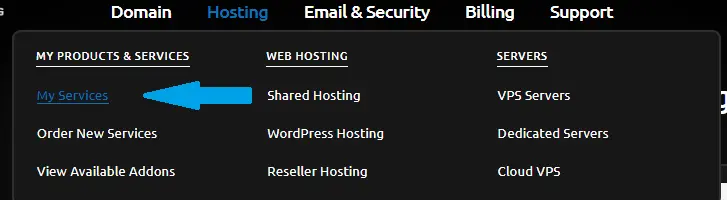
- If Method 1 doesn't apply, navigate to "My Services" using the primary menu:
- From "My Services", navigate to the service associated with the cPanel account you are accessing:

- Once you've reached the service management page of your cPanel service, scroll down until you find the "One-Click Login" sub-menu (on the left side panel) or the cPanel application icon at the bottom of the apps menu. Click on whichever is most convenient:
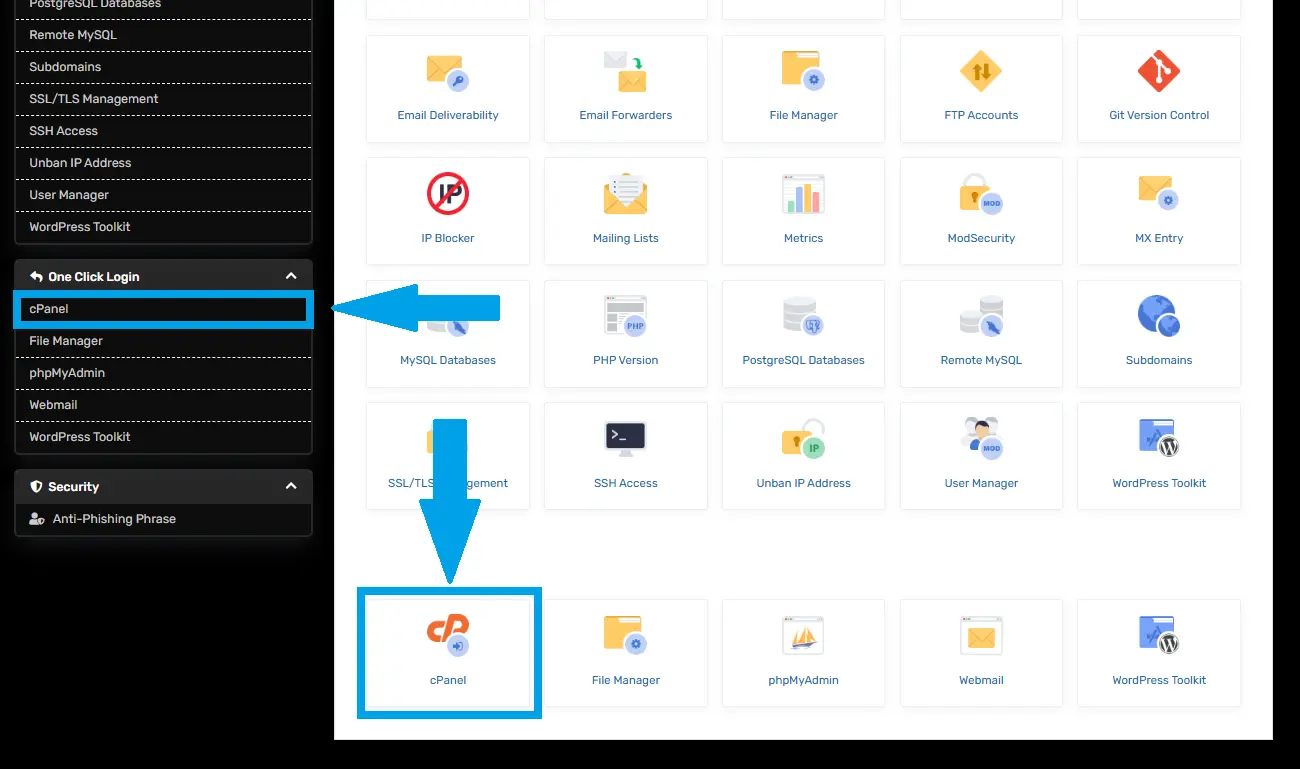
- Navigating to either and clicking should result in direct access to your cPanel account:
Conclusion
You now know how to sign in to cPanel from the Hosting Dashboard.
